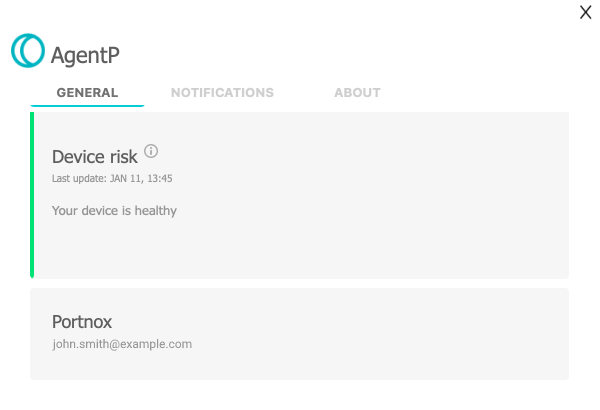
Installing AgentP on BYOD macOS 12 (Monterey) devices
Read this page to learn how to access your company applications if they are protected by Portnox™ Cloud products.
To access your protected company applications, you must do the following:
-
Download and install Portnox AgentP on your device.
-
Log in to Portnox AgentP using your company credentials.
-
Select your certificate when accessing the company application through the browser.
These steps are described in detail in the sections below:
Download and install Portnox AgentP
First, you must download and run the installer for the Portnox AgentP application, which will communicate with Portnox Cloud and generate the certificate for your computer.
-
Scroll down the Download Portnox AgentP page to the tile for the
Mac OSX operating system and click on the tile to download the macOS installer.
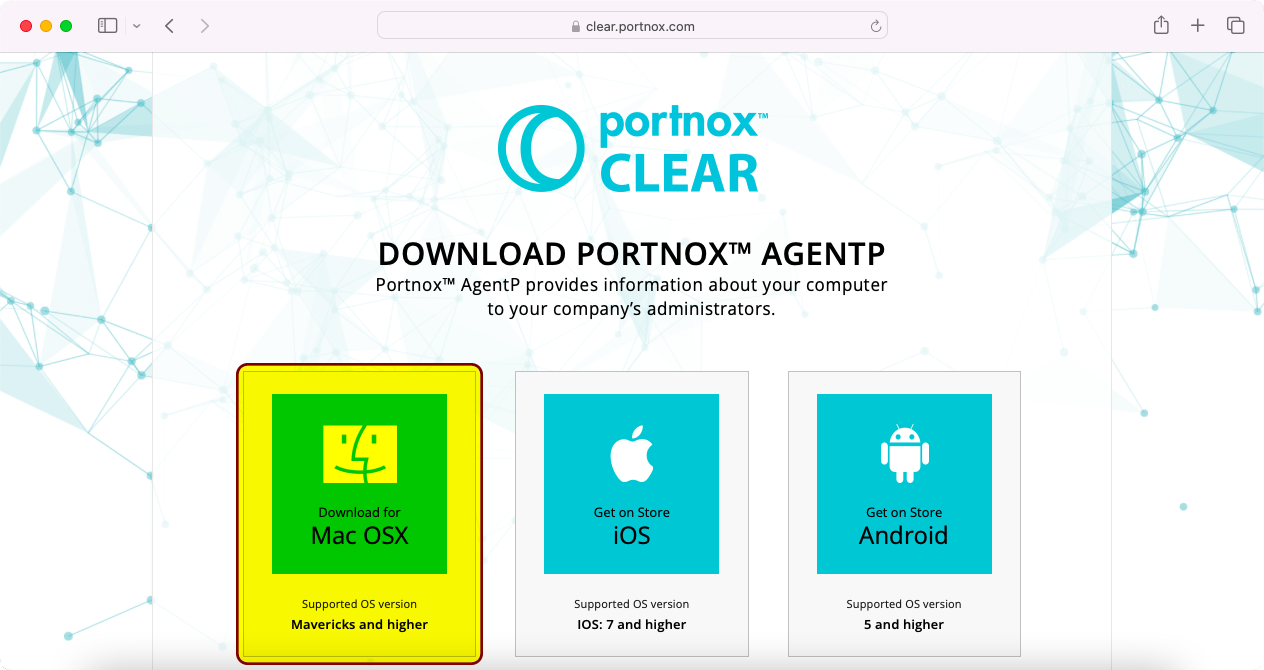 Note:The screenshot above and further screenshots show the Safari browser, which is the default browser in macOS. The page will look very similar in any other browser. You can use the browser of your choice.
- Optional:
If Safari displays a warning asking if you want to allow downloads from this website, click on
the Allow option.
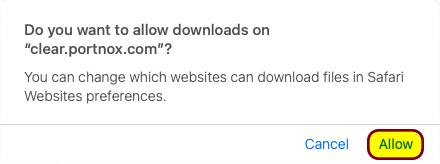
Result: Your browser downloads the Portnox AgentP application installer to your browser’s default download folder.
- Optional:
If Safari displays a warning asking if you want to allow downloads from this website, click on
the Allow option.
-
Click on the Downloads stack on the right side of the Dock and then click on
the downloaded installer package (PortnoxAgentP.pkg).
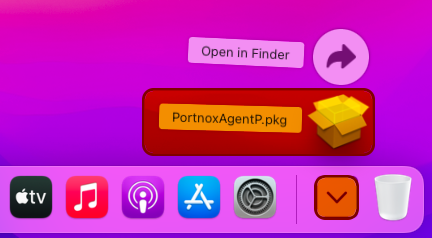
Result: The Install Portnox AgentP Assistant opens.
-
In the Introduction step of the Install Portnox AgentP
Assistant, click on the Continue button.
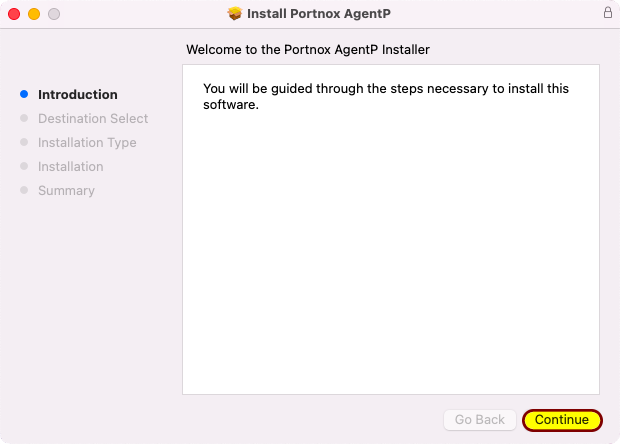
Result: The Assistant proceeds to the Installation Type step.
Note:Depending on the privileges of your user account, the Assistant may proceed to the Destination Select step instead, and ask you to select for which users to install AgentP. If so, we recommend that you install AgentP for all users. -
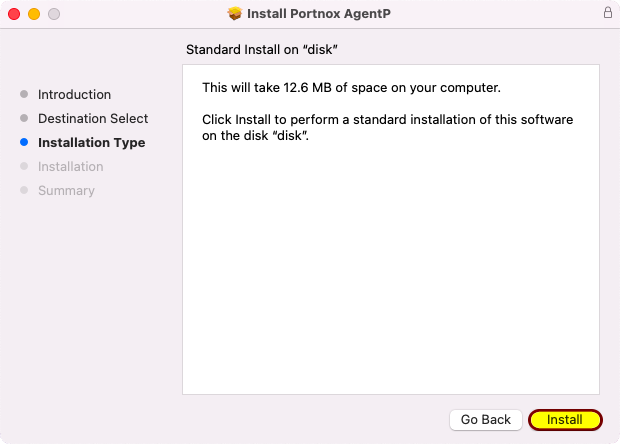
In the Installation Type step of the Install Portnox
AgentP Assistant, click on the Install button.
- Optional:
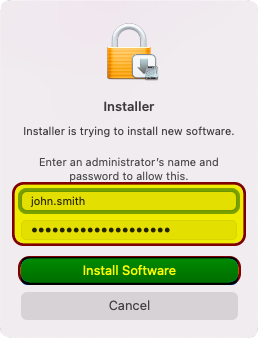
If the operating system displays the Installer window requesting administrator
credentials, and you have administrative privileges on your computer, enter your name and password, and then
click on the Install Software button. If you don’t have administrative privileges on
your computer, ask your company’s IT support staff for assistance.
- Optional:
If the operating system displays the Installer window requesting administrator
credentials, and you have administrative privileges on your computer, enter your name and password, and then
click on the Install Software button. If you don’t have administrative privileges on
your computer, ask your company’s IT support staff for assistance.
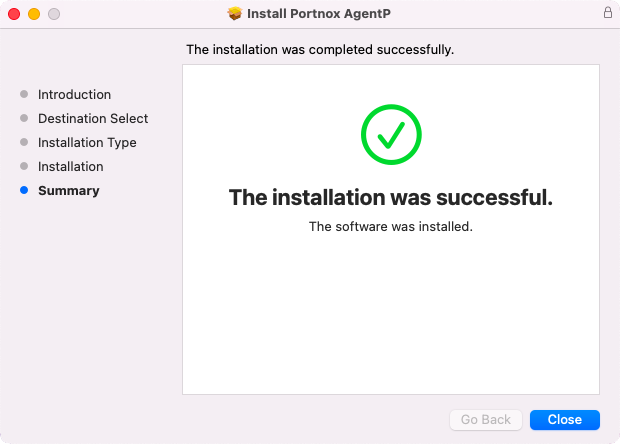
Result: Portnox AgentP is installed on your computer.
Log in to Portnox AgentP using your company credentials
After you download and install the Portnox AgentP application, run it and log in to it using your regular company credentials.
By default, macOS will run the Portnox AgentP application as soon as it is installed. If not, you can run it manually.
-
If the Portnox AgentP application is not running, run it manually: click on the
Launchpad and then click on the Portnox AgentP icon.
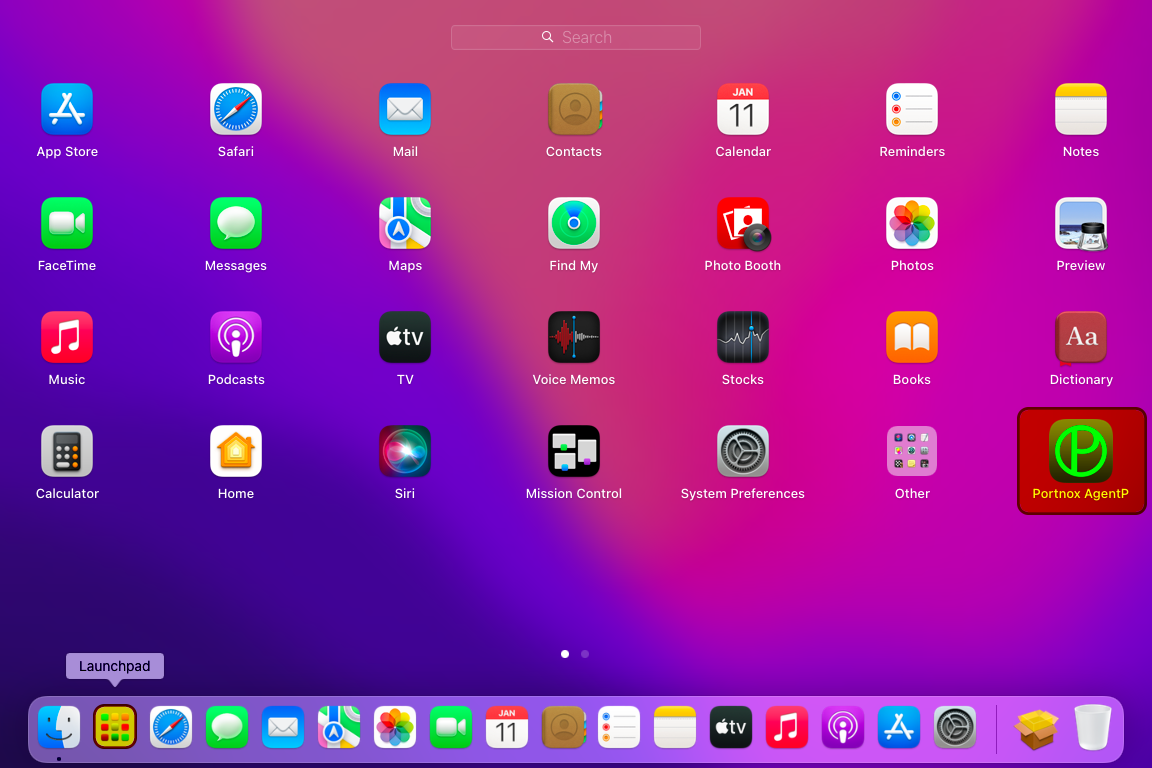
Result: If you haven’t configured AgentP before or if you configured and deactivated it, it opens the AgentP configuration wizard.
-
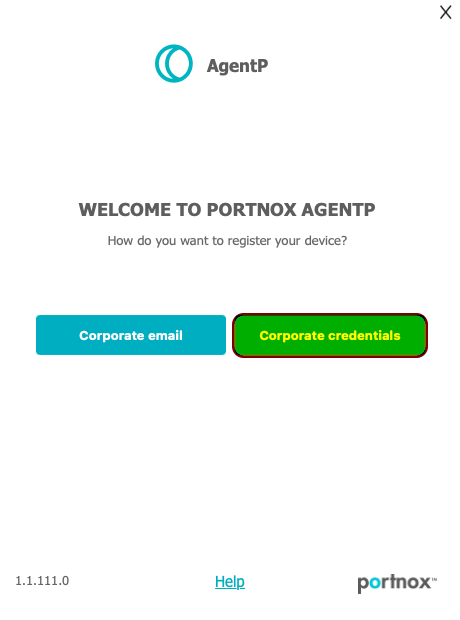
In the Welcome to Portnox AgentP window of the AgentP configuration wizard, click on the
Corporate credentials button.
-
On the Corporate credentials screen, follow the steps depending on how you
normally log in to your company applications.
- If your company uses Microsoft Azure for its employees, tap on Azure.
- If your company uses Google Workspace for its employees, tap on G Suite.
- If your company uses Okta Workforce Identity for its employees, tap on Okta.
- If you don’t recall hearing any of these platform names before when logging in to your company apps, consult with your company’s IT support staff or enter your company email and password in the Domain\username or email and Password fields and then tap on Activate.
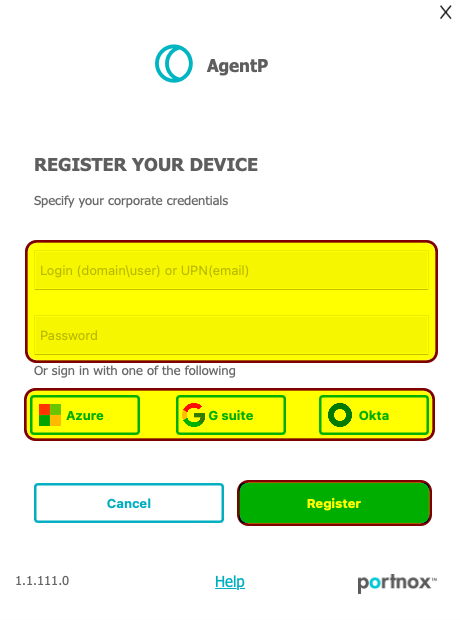 Important:The following steps and screenshots assume that your company uses Microsoft Azure, which is the most popular platform. These steps will look similar if your company uses other platforms.
 -
If your company uses Azure, in the Sign in window, enter your business email
address. Then, click on the Next button.
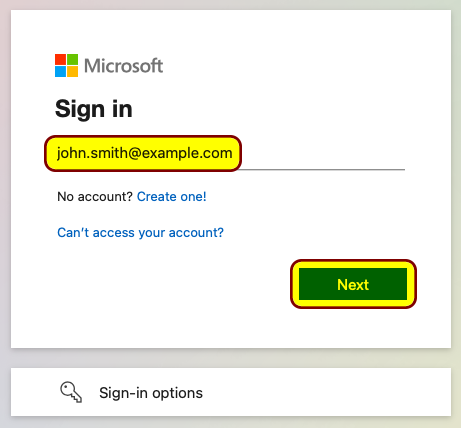 Note:The screenshot above is an example, where your company name is Example and your company domain is example.com. Use your real business email address instead.
Troubleshooting: If you see a button with your email address on it, it means you are already logged in to Microsoft Azure. Click on that button instead of entering your email address.
-
If your company uses Azure, in the Enter password window, enter the password
that you normally use to access your company email and applications. Then, click on the Sign
in button.
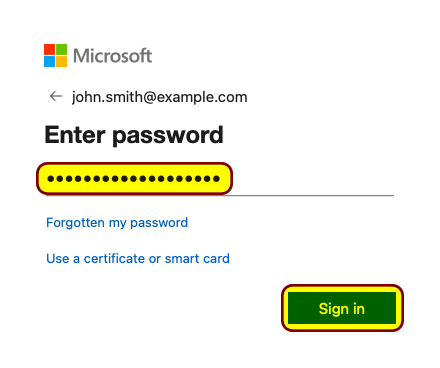
Troubleshooting: If you cannot log in, and you are sure that your password is correct, go back to the Register your device step and try a different choice or ask your company’s IT support staff what platform your company uses to authenticate the employees.
-
If your company uses Azure, and a Stay signed in? window
appears, follow the company policy and/or your preferences to choose Yes or
No.
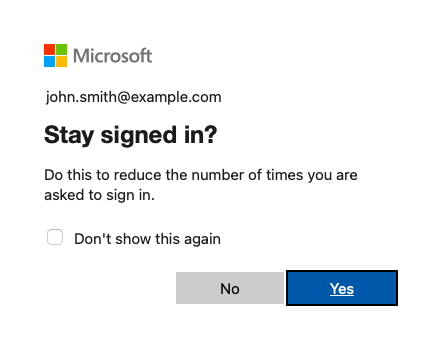 Note:Your choice will not affect your access to applications but if you choose No, you may have to log in again the next time you will be accessing the applications.
 -
In the Please install Wi-Fi configuration profile window, click on the
Install button.
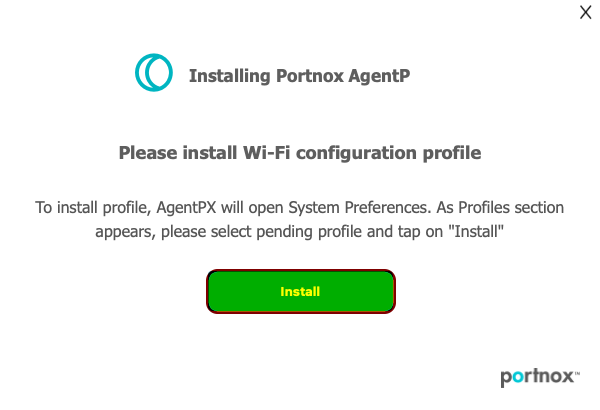
Result: The Profiles window opens.
Troubleshooting: If the Profiles window does not open automatically, click on the System Preferences icon in the Dock and then click on the Profiles icon to open it.
-
In the Profiles window, click on the Install... button.
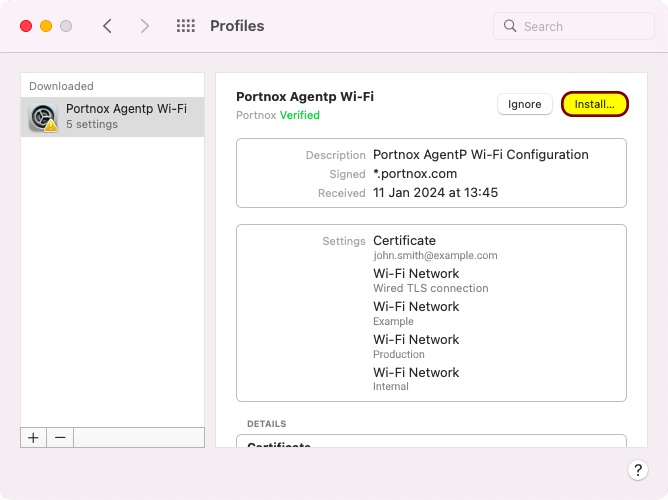
- Optional:
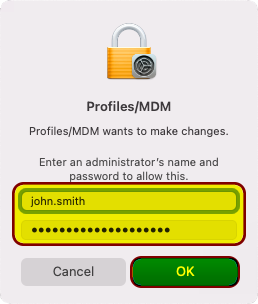
If the operating system displays the Profiles/MDM window requesting administrator
credentials, and you have administrative privileges on your computer, enter your name and password, and then
click on the OK button. If you don’t have administrative privileges on your computer,
ask your company’s IT support staff for assistance.
Result: The Portnox AgentP profile is installed.
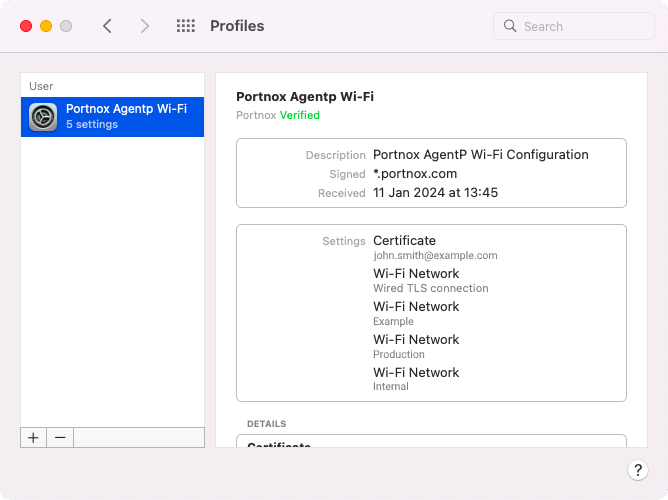 Note:The profile mentions Wi-Fi networks because in addition to letting you access your company applications, the certificate could also be used to access internal Wi-Fi networks. This functionality is beyond the scope of this guide. For more information, consult your IT support department.
 - Optional:
If the operating system displays the Profiles/MDM window requesting administrator
credentials, and you have administrative privileges on your computer, enter your name and password, and then
click on the OK button. If you don’t have administrative privileges on your computer,
ask your company’s IT support staff for assistance.
Result: You are logged in to Portnox AgentP. AgentP silently requested and downloaded the certificate for your device, which you will later use to log in to applications.