
Add Zero Trust Network Access as an external authentication method (EAM) in Entra ID
In this topic, you will find instructions on how to add Portnox™ Zero Trust Network Access as an external authentication method (EAM) in Microsoft Entra ID.
Before you begin, read the following important notes:
-
To add Portnox Zero Trust Network Access as an external authentication method in Entra ID, you need a Microsoft Entra ID P1 license. This functionality isn’t available in lower-tier licenses.
-
Currently, Entra ID doesn’t support configuring external authentication methods as authentication strengths. This means all available authentication methods are treated equally in terms of strength. For example, if Microsoft Authenticator is still enabled, users can authenticate using either Portnox ZTNA or Microsoft Authenticator. Until Microsoft releases this feature, there’s no way to require both Microsoft Authenticator and Portnox Zero Trust Network Access for three-factor authentication. To prevent users from using Microsoft Authenticator, you’ll need to disable it for specific users or groups.
-
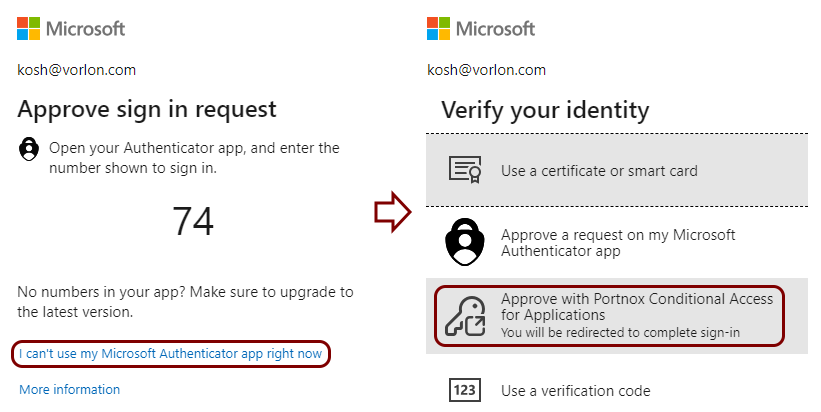
If Microsoft Authenticator is available, users will always see it as the first option when signing in. To log in using Portnox Zero Trust Network Access, they will need to click the I can’t use my Microsoft Authenticator app right now link when prompted by the Microsoft Authenticator sign-in request. After that, they can choose to log in with Portnox Zero Trust Network Access.
-
Microsoft still allows organizations to use outdated Entra ID configurations (pre-migration), so some organizations continue to manage multi-factor authentication on a per-user basis. If your organization hasn’t completed this migration, ensure that users you want to use Portnox Zero Trust Network Access are set up to require multi-factor authentication for login.
-
If you need more help with setting up the integration, we recommend that you read Microsoft’s guide to managing external authentication methods.
Create a Portnox Cloud application configuration
In this step, you will create a new EAM (OIDC) application configuration in Portnox Cloud.
-
In the top menu, click on the Zero Trust Resources option.

-
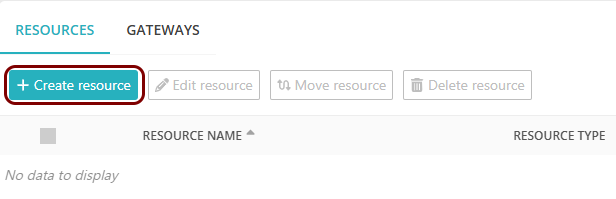
On the Resources screen, click on the Create resource button.
-
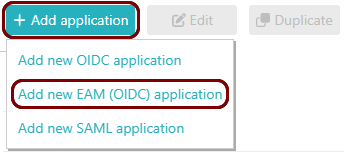
In the What type of resource is this? section, select the SSO web
application option, and in the Authentication protocol section, select the
EAM option. Then, click on the Next button.
-
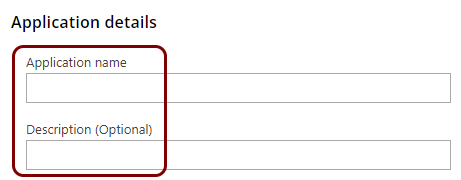
In the Resource details section, enter a Resource
name and optionally a Description.
Create a new Entra ID application
In this section, you will access the Microsoft Azure administrative interface and use it to create a new Entra ID application.
-
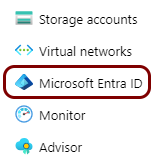
In the Azure Portal main menu, click on the Microsoft Entra
ID option.
-
In the left-hand side menu, click on the option.
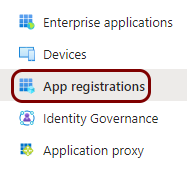
-
In the top menu of the App registrations screen, click on the New
registration button.

-
In the Portnox tab, click on the ⧉ icon next to the
Authorization Endpoint field to copy the value to your clipboard.

-
In the Entra App tab, in the Redirect URI (optional) section, select the
Web value in the first field, and paste the value copied from Portnox Cloud in the second
field. Then, click on the Register button to register the app.

-
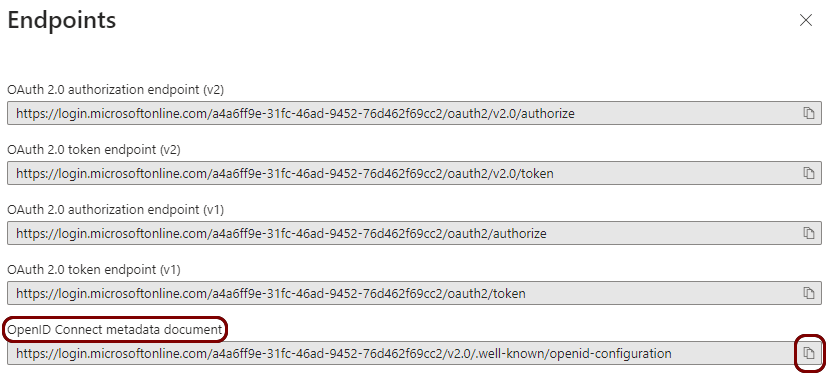
After the app is registered, in the top menu of the app screen, click on the Endpoints
button.

-
On the app screen, hover your mouse pointer over the value of the Application (client) ID
field, and then click on the ⧉ icon to copy the value to your
clipboard.

-
In the Portnox tab, click on the Set up an identity provider to get started link to create a
new EAP identity provider.
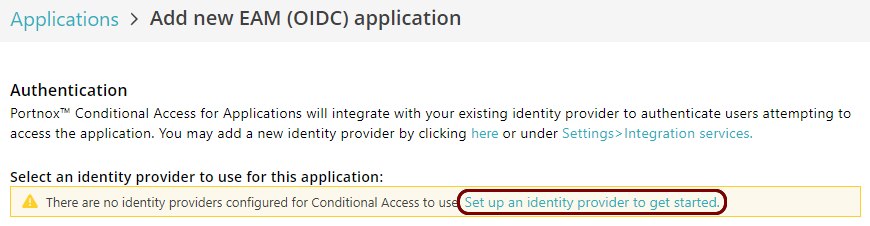 Note:If you already have one EAM identity provider and you do not see this link, to create a new EAM identity provider, open a new browser tab, log in to Portnox Cloud, and create a new identity provider by going to: .
 -
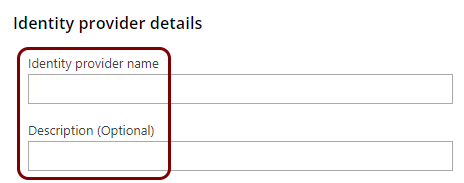
In the Add a new EAM (OIDC) identity provider window, enter the Identity provider
name and the Description (Optional) for the new identity provider.
-
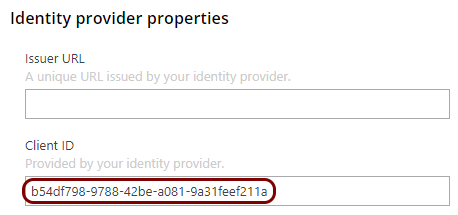
Paste the copied value into the Client ID field.
-
In the Entra App tab, in the Endpoints pane, click on the ⧉ icon next to the OpenID Connect metadata document
field.
-
In the Portnox tab, in the Add a new EAM (OIDC) identity provider window, paste the copied
value in the Issuer URL field. Then, remove the following trailing text:
/.well-known/open-id-configuration, so that the URL ends with the string
v2.0.
Note:The final format of the value should be:
https://login.microsoftonline.com/your_tenant_id/v2.0. There should be no trailing slash.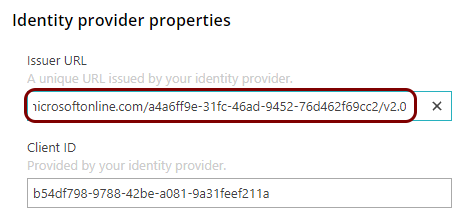
-
Click on the Save and Close button in the Add a new EAM (OIDC) identity
provider window to save your identity provider configuration.
Create a new Entra ID authentication method
In this section, you will access the Microsoft Azure administrative interface and use it to create a new Entra ID authentication method.
-
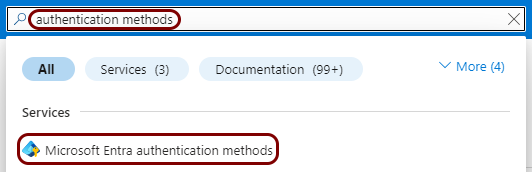
In the Entra ID search bar (Search resources, services, and docs), enter
authentication methods, and then click on the Microsoft Entra authentication
methods option below.
-
On the Authentication Methods | Policies screen, in the top menu, click on the Add
external method (Preview) button.

-
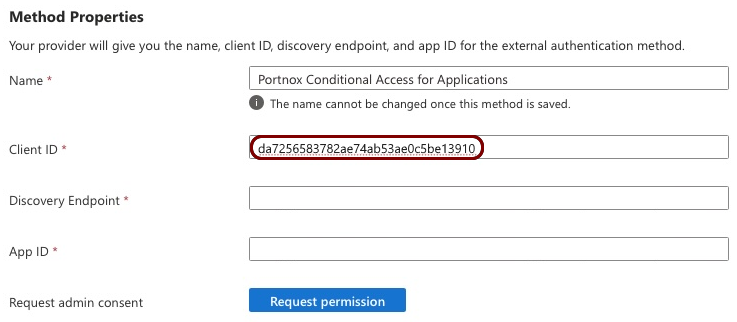
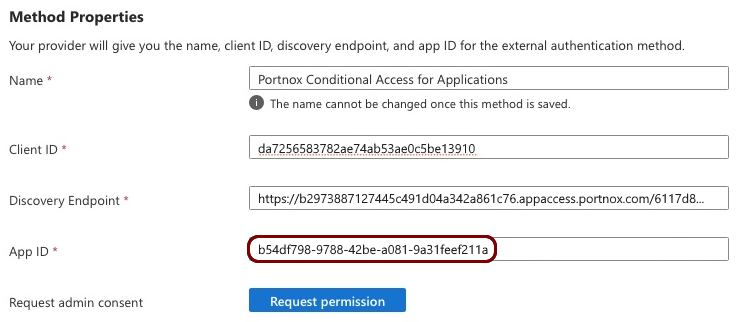
In the Portnox tab, click on the ⧉ icon next to the Client
ID field to copy the value to your clipboard.

-
In the Entra Auth tab, paste the copied value into the Client ID field.
-
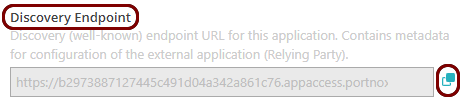
In the Portnox tab, click on the ⧉ icon next to the Discovery
Endpoint field to copy the value to your clipboard.
-
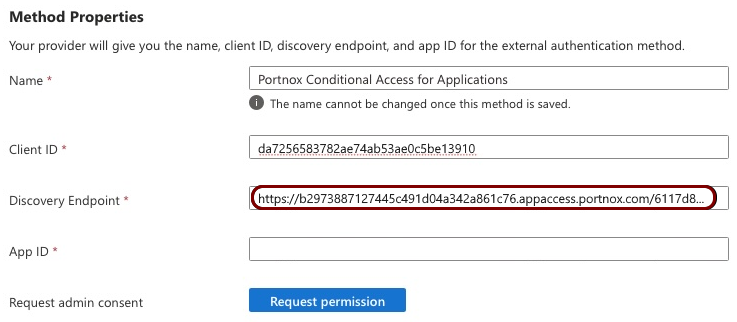
In the Entra Auth tab, paste the copied value into the Discovery Endpoint field.
-
In the Entra App tab, hover your mouse pointer again over the value of the Application (client)
ID field, and then click on the ⧉ icon to copy the value to
your clipboard.
-
In the Entra Auth tab, paste the copied value into the App ID field.
-
Click on the Request permission button.
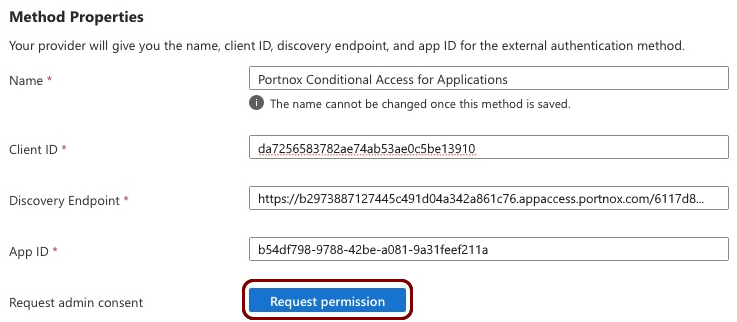
The Microsoft Permissions requested window will appear. Click on the Accept button to confirm the permission. The Request permission button will disappear, and you will see the Admin consent granted message in its place.

-
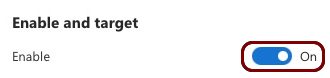
In the Enable and target section, turn on the Enable switch.
-
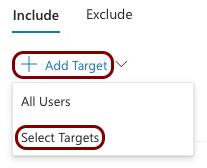
In the Include section, click on the Add Target button and select the
Select Targets option from the menu. Then, select the users or groups that should be
allowed to use Portnox Zero Trust Network Access to log in.
 Note:You can also choose the All Users option to allow all users in your organization to use Portnox Zero Trust Network Access to log in. This does not enforce the use of Portnox Zero Trust Network Access, it just offers it as an option among other multi-factor authentications that are available.
 -
Click on the Save button to save the authentication method.

Create a new Entra ID conditional access policy
In this section, you will access the Microsoft Azure administrative interface and use it to create a new Entra ID conditional access policy.
-
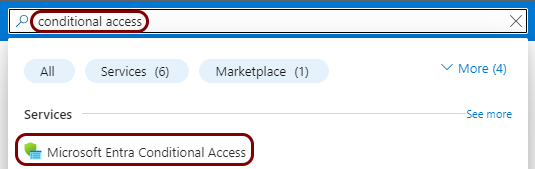
In the Entra ID search bar (Search resources, services, and docs), enter
conditional access, and then click on the Microsoft Entra Conditional
Access option below.
-
In the top menu, click on the Create new policy button.

-
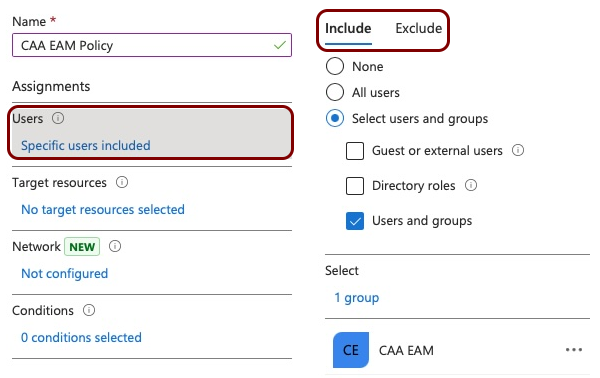
In the Users section, click on the 0 users and groups selected link.
On the right-hand side, in the Include and Exclude sections, select
the users that are required to use multi-factor authentication.
Warning:We strongly recommend using a limited number of users to test the configuration first, to avoid being locked out of all Entra ID access in case of an error in configuration, especially if no other multi-factor authentication methods are active. We also recommend that you have at least one emergency access account in Entra ID that does not require multi-factor authentication.
-
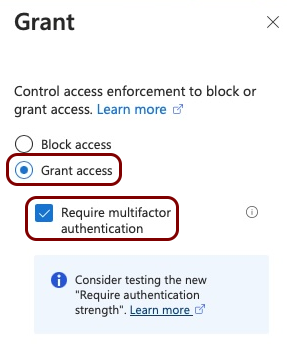
In the Grant section, click on the 0 controls selected link. In the
Grant pane, select the Grant access option, and activate the
Require multifactor authentication checkbox. Then, click on the
Select button.
-
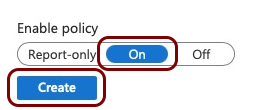
Set the Enable policy switch to On and click on the
Create button to create the conditional access policy.
Test your integration
In this section, you will learn how to test and troubleshoot your integration.
We suggest that you keep all the configuration tabs open until you finish testing.
-
Click on the button representing Portnox Zero Trust Network Access.