
Automatic updates for Docker containers (portnox-autoupdate)
In this topic, you will learn what the portnox-autoupdate Docker container does, its requirements, how to deploy it, and how its update behavior works.
Overview
The portnox-autoupdate Docker container automatically updates all other Portnox Docker containers running on the same Docker host to their latest versions, as soon as they are available. It is available in the public Docker repository as portnox/portnox-autoupdate. It has no virtual machine equivalent.
The following containers are updated automatically by this container:
- Local RADIUS server
- Local TACACS+ server
- ZTNA gateway
- DHCP relay
- SIEM gateway
- UniFi agent
- Firewall identity mapper
If you choose not to use the portnox-autoupdate container, you will need to completely remove your existing containers and images, and then redeploy them from the latest image whenever an update is available.
Requirements
The container must run on the same host that the containers that it updates, it cannot update other containers remotely.
The container requires access to the Docker socket (/var/run/docker.sock) on its host, since it needs to inspect and recreate the other Portnox containers running there. This is included in the docker run command in the deployment steps and is not optional.
Only one portnox-autoupdate container can be deployed per Docker host. Running multiple autoupdate containers on the same host is not supported and can cause update conflicts, particularly when the autoupdate container updates itself.
Follow the firewall requirements in this topic: How to set up the firewall for Portnox Docker containers to connect to Portnox Cloud.
Deployment
-
Find the organization ID:
-
Get an API token from Portnox Cloud:
-
Click on the ⧉ button to copy the code and store it in a safe
place.
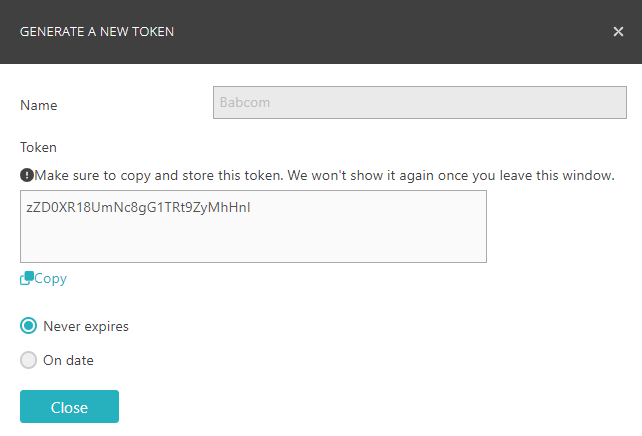 Important:You will not be able to access this code again after closing this window.
-
Click on the ⧉ button to copy the code and store it in a safe
place.
-
Deploy the portnox-autoupdate Docker container:
-
On Linux:
sudo docker run --restart=always -d --name portnox-autoupdate \ -v /var/run/docker.sock:/var/run/docker.sock \ -v portnox-autoupdate-logs:/app/logs \ -e AUTO_UPDATE_ORG_ID=your_organization_ID \ -e AUTO_UPDATE_PORTNOX_API_TOKEN=your_API_access_token \ portnox/portnox-autoupdate:latest -
On Windows:
docker run --restart=always -d --name portnox-autoupdate ^
  -v /var/run/docker.sock:/var/run/docker.sock ^
  -v portnox-autoupdate-logs:/app/logs ^
  -e AUTO_UPDATE_ORG_ID=your_organization_ID ^
  -e AUTO_UPDATE_PORTNOX_API_TOKEN=your_API_access_token ^
  portnox/portnox-autoupdate:latest
-
Troubleshooting
To collect Docker container logs for troubleshooting, see the following topic: How to collect Portnox Docker container logs for support.
Updates
Automatic updates run once per day at a randomly selected time between 1:00 AM and 2:00 AM local container time.
Containers are updated sequentially, not simultaneously, and the portnox-autoupdate container is always updated last.
If a temporary error prevents an update, the failure is logged and the update is retried during the next scheduled run.
In very rare cases, a container may be removed but not recreated, requiring manual intervention.