
Configure ZTNA with on-premises resources and a Windows virtual machine
In this topic, you will learn how to configure Portnox™ ZTNA to allow your remote users to access your private resources hosted on-premises, by using a Docker container in an on-premises machine with Windows.
In this scenario:
-
You want your remote users to be able to access private resources that you host on-premises.
-
You need to host a Portnox Docker container in the on-premises local network to be able to access these resources. You want to use a Windows-based virtual machine to run Docker Desktop and host the container.
We assume that you have already set up a physical or virtual machine on your chosen platform with Windows installed. We also assume that this machine is running in a network that has direct access to the resource. We also assume that you already distributed certificates to your client devices.
Install Docker Desktop
In this section, you will learn how to follow Docker documentation to install Docker Desktop on the Windows machine.
Skip this section if Docker Desktop is already installed.
-
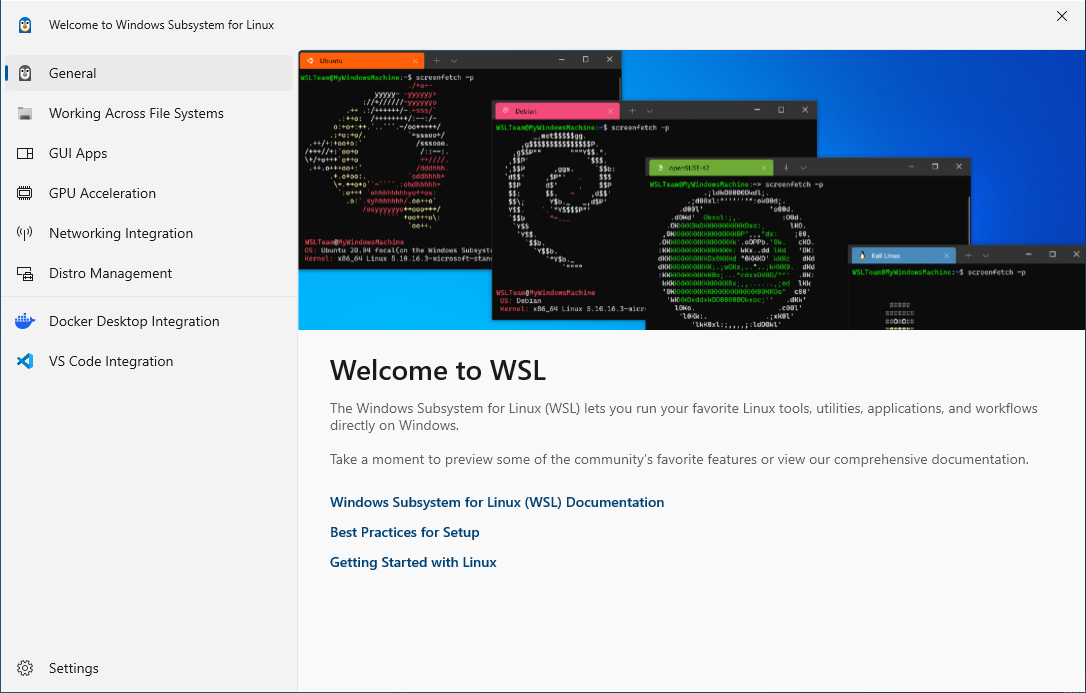
Enable the Windows Subsystem for Linux (WSL) and install Ubuntu:
Note:For detailed instructions on how to enable WSL and install Ubuntu, see official Microsoft documentation.Note:You can run Docker Desktop with WSL or Hyper-V. WSL is recommended for performance reasons. If you need to run Docker Desktop with Hyper-V instead, refer to the official Docker and Microsoft documentation.
Result: WSL with Ubuntu is ready and you can proceed with Docker installation.
-
Install Docker Desktop:
Note:For detailed instructions on how to install Docker Desktop, see official Docker Desktop documentation.
-
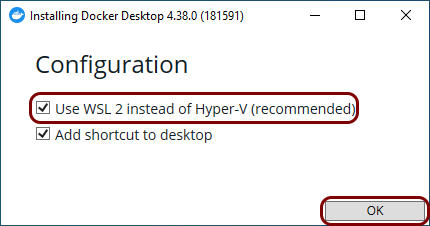
Run the downloaded installer file and in the installer window, when prompted, activate the Use
WSL 2 instead of Hyper-V checkbox.
-
Run the downloaded installer file and in the installer window, when prompted, activate the Use
WSL 2 instead of Hyper-V checkbox.
-
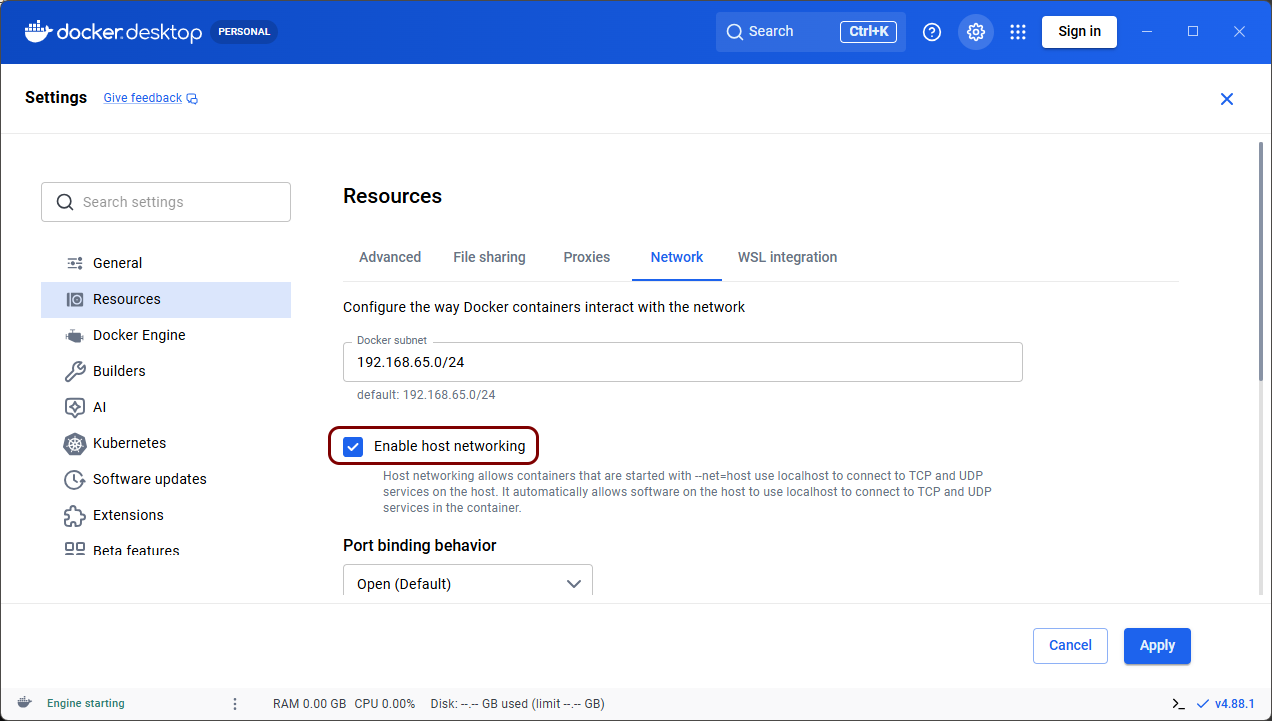
Enable host networking in Docker Desktop.
In Docker Desktop, navigate to , enable Enable host networking, and then click on the Apply & Restart button.
- Optional:
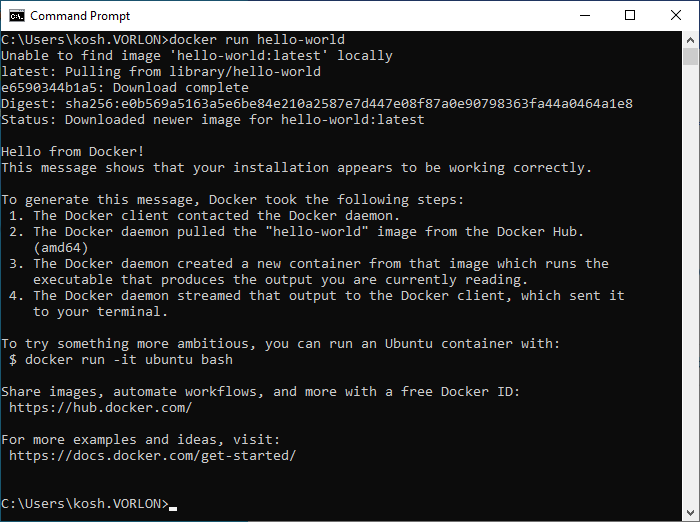
Test Docker in the Windows command line:
-
Run the following command:
docker run hello-worldResult: If you see the following output, it means your installation was successful and Docker is ready:
-
Run the following command:
Set up the ZTNA gateway in Portnox Cloud
In this section, you will set up a ZTNA gateway in Portnox Cloud, install Docker on your machine, and run the Portnox ZTNA Docker container.
-
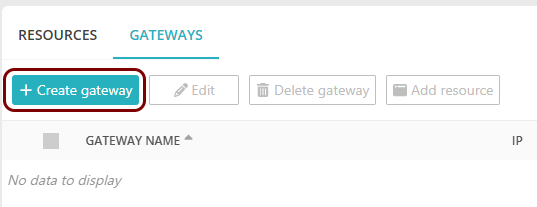
In the top menu of Portnox Cloud,
select the option. Then, on the Gateways screen, click on the + Create
gateway button.
-
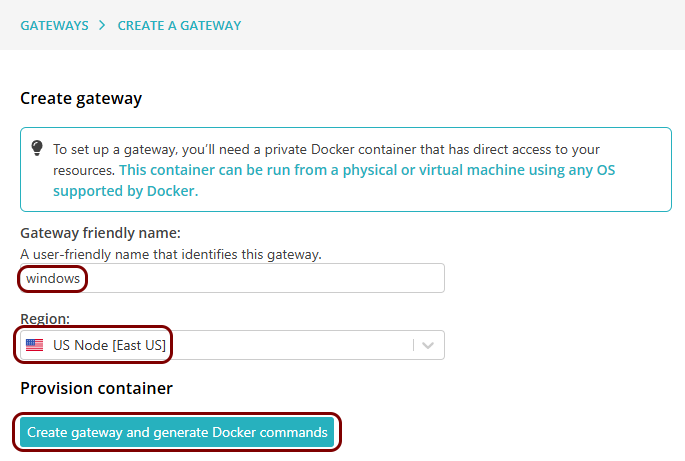
On the Create gateway screen, enter a name for this
gateway in the Gateway friendly name field, and in the Region field,
select either US Node or EU Node. Then, click on the Create
gateway and generate Docker commands button.
-
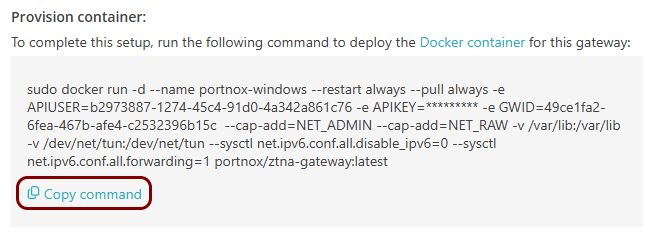
In the Provision container step, click on the
Copy command link under the displayed Docker command to copy the command to the
clipboard.
-
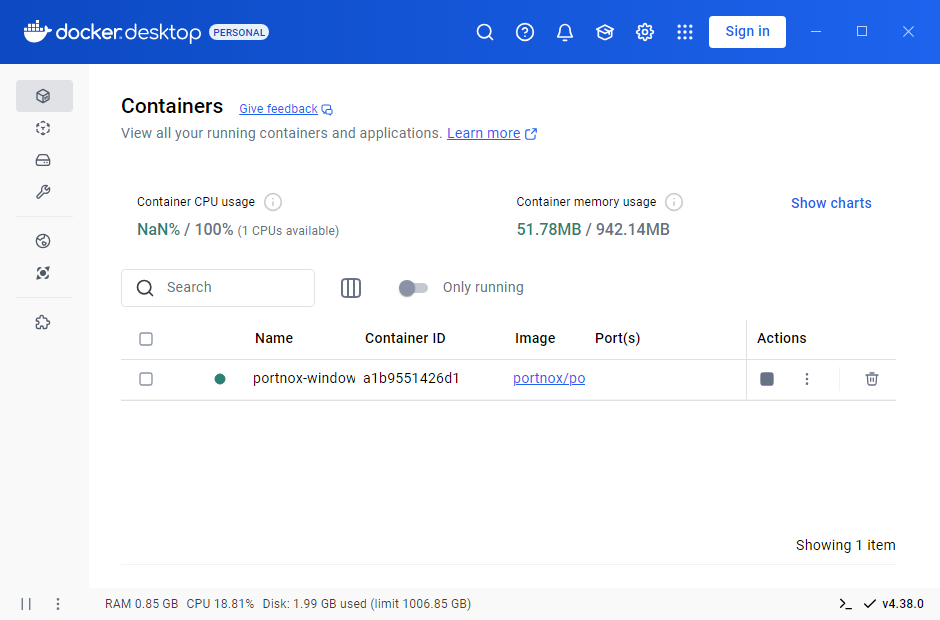
Paste the modified command in a command prompt window with administrative privileges to run the Docker
container.
Result: The Docker container is running in Docker Desktop.
Set up the ZTNA resource in Portnox Cloud
In this section, you will set up a ZTNA resource in Portnox Cloud and configure it to access your private resource hosted in the same local network as the Docker container.
-
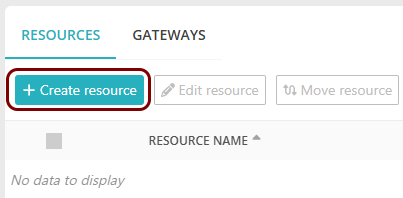
In the top menu of Portnox Cloud, select the option. Then, on the Resources screen, click on the + Create
resource button.
-
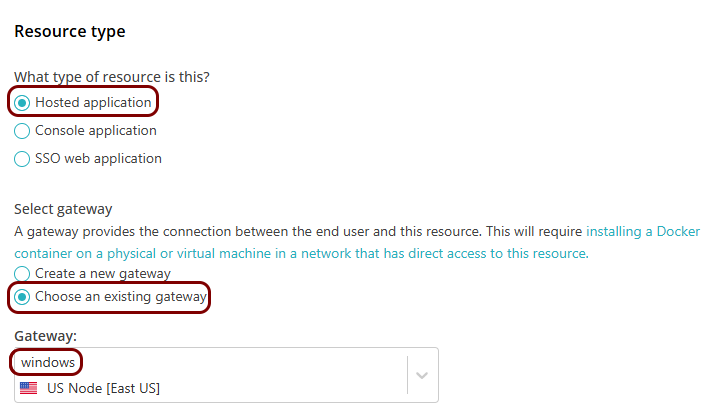
In the Resource type step, select the Hosted
resource option, and then the Choose an existing gateway option. In the
Gateway field, select the gateway that you have just created.
-
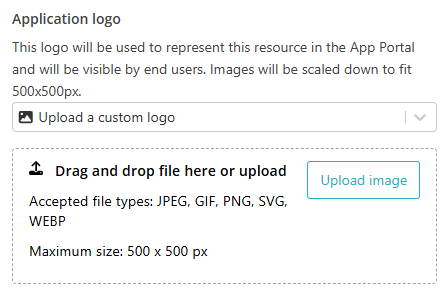
In the Application logo section, select one of the logos from the list, or select the
Upload a custom logo option and then click on the Upload image
button to upload a logo for the application. Then, click on the Next button.
The logo is used in the Secure Access Portal.
-
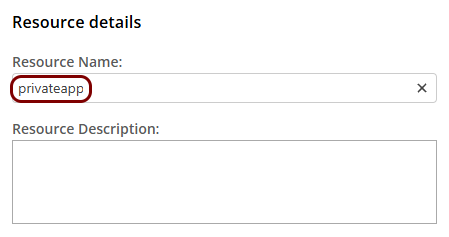
In the Details step, in the Resource Name
field, enter the name for this resource and optionally the Resource Description.
Note:The Resource Name must be a valid subdomain name, because the URL will be constructed using this name. You should only use lowercase letters, digits, and hyphens.
Result: If you want to use the Portnox URL, you can copy the URL for your resource by clicking on the ⧉ icon.
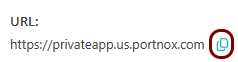 Note:Make sure to check if your web resource will accept connections when accessed using this URL. If your web security solution has an anti-CSRF feature, you will need to configure it to allow this URL.
 - Optional:
If your resource uses the same IP address and port as other resources:
Note:This is quite a common situation, for example, when you use a single on-premises web server to host several resources, and you create internal domain names for these resources such as: confluence.vorlon-onpremises.com or jira.vorlon-onpremises.com.
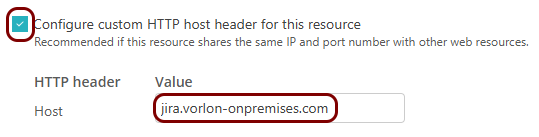
- Activate the Configure custom HTTP host header for this resource checkbox.
- In the Value column, enter the host header value.
- Optional:
If you want to use a URL in your own domain for the resource:
-
Activate the Use a custom URL linked to an SSL certificate checkbox.

-
In the Upload SSL certificate section, click on the Select
file button, and upload the certificate and private key for the custom URL (in the PKCS #12 format). Then, enter the password
for the private key in the Certificate password field, and click on the
Apply certificate button.
 Note:You must acquire the specific subdomain certificate from the relevant certificate authority, or you can use a wildcard certificate for all your subdomains.
 -
Verify the details displayed for the certificate.

-
If you are using a certificate with multiple domains/subdomains or a wildcard certificate, in the
Domain field, select the relevant domain for your resource’s URL, and in the
Suffix field (if active – only for wildcard certificates), enter the
subdomain.
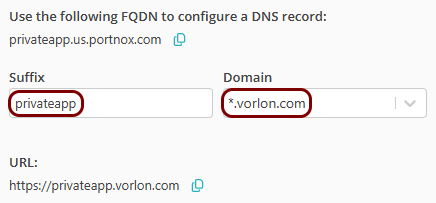
In this example, your resource URL will be: privateapp.vorlon.com.
-
Activate the Use a custom URL linked to an SSL certificate checkbox.
-
In the IP, port and protocol section, enter the details of the hosted resource in the
Hostname or IP Address, Port, and Protocol
fields.
 Note:If you select HTTP in the Protocol field, to access it using ZTNA you still use HTTPS, not HTTP. For example, http://privateapp.vorlon.com or http://privateapp.us.portnox.com will not work.
Result: Your users can now access your private resource by typing the URL in the browser.
Configure the hosted application access control policy
In this section, you will configure the access control policy for groups that you want to have access to this hosted application.
-
In the Cloud portal top menu, click on the Groups option.

-
Select a group that you want to configure, click on the ⋮ icon at the end
of the row that represents the group, and then select the Group policies option.
 Note:Repeat this step and the next steps for any other groups that you want to be able to access hosted applications.
Automatically update the existing local container
In this section, you will learn how to automatically update your Docker container to the latest version by deploying another Docker container: portnox-autoupdate.
-
Get an API token from Portnox Cloud:
-
Click on the ⧉ button to copy the code and store it in a safe
place.
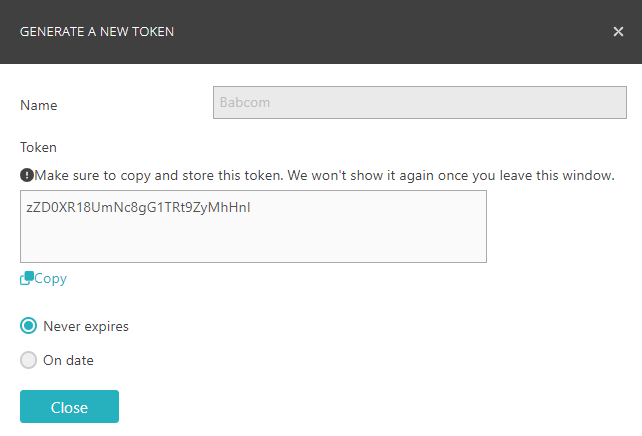 Important:You will not be able to access this code again after closing this window.
-
Click on the ⧉ button to copy the code and store it in a safe
place.