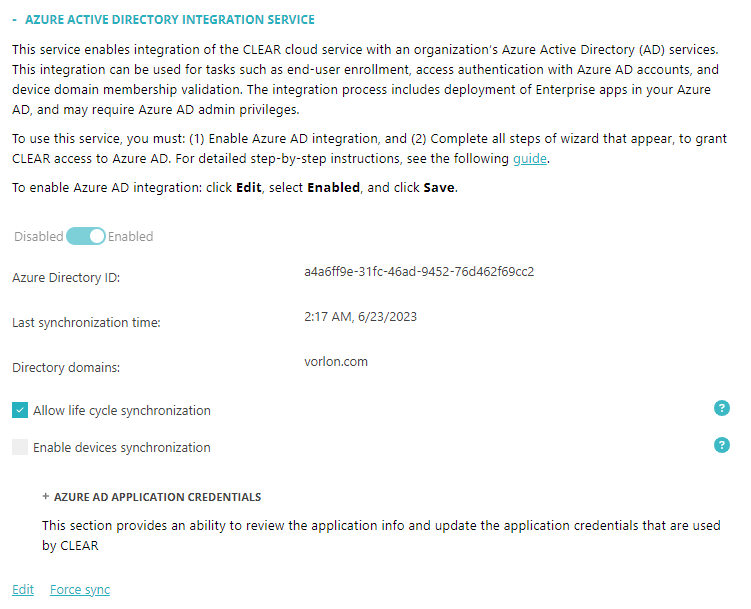
Integrate with Microsoft Entra ID
In this topic, you will learn how to integrate Portnox™ Cloud with Microsoft Entra ID services.
-
In the Cloud portal top menu, click on the Settings option.

-
In the Cloud portal left-hand side menu, click on the option.

-
Enable the Entra ID integration.
-
Under the Entra ID Integration Service heading and description, click on the
Edit link.
-
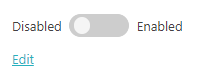
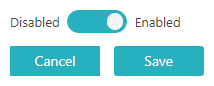
Click on the Disabled/Enabled switch to put it in the Enabled
position.
-
Under the Entra ID Integration Service heading and description, click on the
Edit link.
-
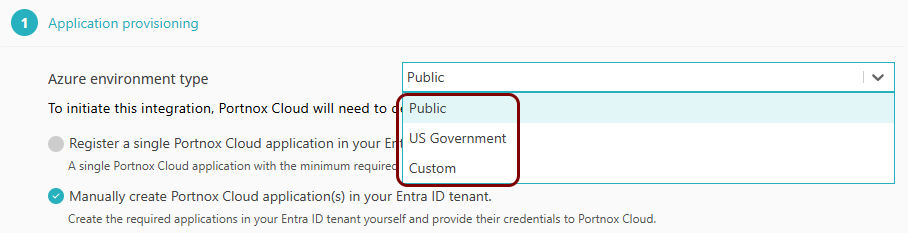
In the Application provisioning step, select your Azure environment type
from the drop-down menu.
-
Public: This is the standard Microsoft Azure environment used by most organizations worldwide. Select this option unless your organization specifically uses one of the other environments listed below.
-
US Government: This is a physically isolated instance of Microsoft Azure operated exclusively for US federal, state, local, and tribal government agencies, and their partners. It meets strict compliance requirements such as FedRAMP High, CJIS, and DoD SRG.
Note:Because this environment does not permit Portnox Cloud to register applications automatically, only the Manually create Portnox Cloud application(s) in your Entra ID tenant option is available when this environment type is selected. For more information on manual application creation, see: Integrate with Entra ID using manual provisioning. -
Custom: This option is for organizations operating in sovereign or national cloud environments with custom Entra ID endpoints – for example, organizations in China using Microsoft Azure operated by 21Vianet, which operates under Chinese data residency and sovereignty laws. These environments use entirely separate portals, app registrations, and endpoint domains from the standard commercial cloud; a global Entra ID app registration cannot be reused here. When you select this option, you must manually enter endpoint values. For information on these endpoint values and how to obtain them, see the following topic: Custom Azure endpoints for Entra ID and Intune integrations.
Note:Because this environment does not permit Portnox Cloud to register applications automatically, only the Manually create Portnox Cloud application(s) in your Entra ID tenant option is available when this environment type is selected. For more information on manual application creation, see: Integrate with Entra ID using manual provisioning.
-
-
Select the application provisioning method and click on the Start integration button.
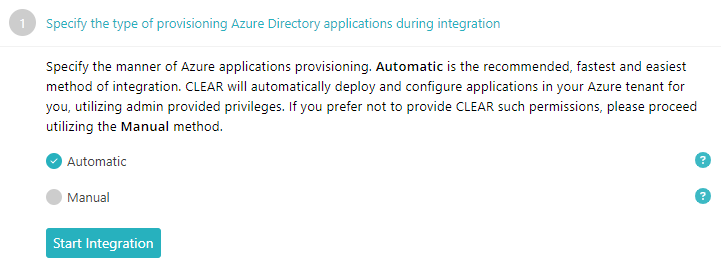 Important:If you selected Public as the environment type, all three provisioning options are available. We recommend selecting Register a single Portnox Cloud application in your Entra ID tenant. If you prefer to use the legacy multi-application option, go to the following topic instead: Integrate with Entra ID using multiple applications. If you prefer to integrate manually to have granular control over application privileges in your Entra ID environment, go to the following topic instead: Integrate with Entra ID using manual provisioning. If you selected US Government or Custom as the environment type, only the manual option is available — follow the steps in: Integrate with Entra ID using manual provisioning.Warning:Wait for the Microsoft web servers to display the results of each step of the integration before you proceed further. Do not hurry. Otherwise, the integration process may fail and you will need to start it from scratch.
 -
Grant the Portnox Cloud integration application consent to read Entra ID data.
-
Click on the Grant consent button.

Your browser will display a Microsoft prompt to select an account.
-
Click on the admin account for your Entra ID tenant.
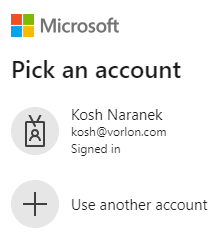
Your browser will display a Microsoft prompt asking you to confirm the required permissions.
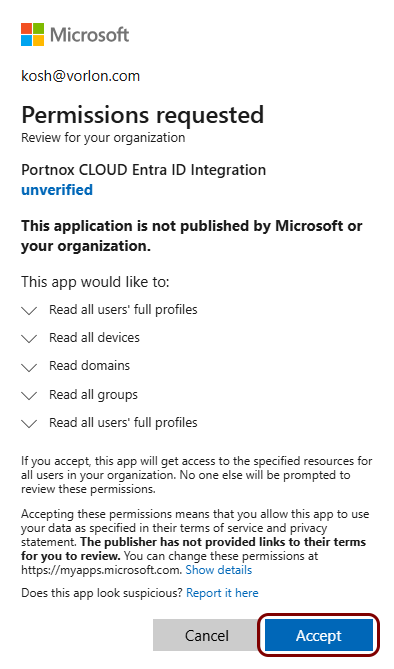
-
Click on the Grant consent button.
-
Select the domains managed by Entra ID that you want to associate with your Portnox Cloud organization.
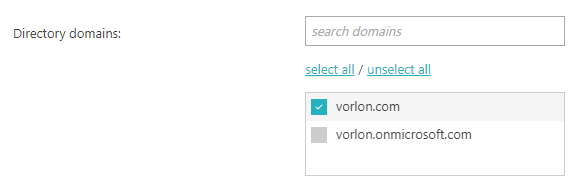
- If your Entra ID manages many domains you can use the search domains field to search for a string that matches a domain name. The list of domains below the search field will be updated as you type.
- Click on the select all or unselect all link to select or deselect all domains in the list.
- Click checkboxes next to domains to select or deselect them individually.
- After you select the domains, click on the Save Domains button to save your selection.
-
Under the Entra ID Integration Service section, click on the Force sync
link.
Portnox Cloud will start synchronizing immediately in the background with your Entra ID. If you do not click Force sync, the synchronization process will be started automatically later.
 Note:If your Entra ID directory is very large, this process can take up to approximately an hour.
Result: Your Entra ID integration is now active. You can authenticate devices on your network using Entra ID.