
How to find the OS version for risk assessment policies?
In this topic, you will learn how to find the operating system version for risk assessment policies on Windows, macOS, Linux, Android, and iOS devices.
Microsoft Windows
-
Find the following key: Computer\HKEY_LOCAL_MACHINE\SOFTWARE\Microsoft\Windows
NT\CurrentVersion\ and copy the CurrentBuildNumber value.
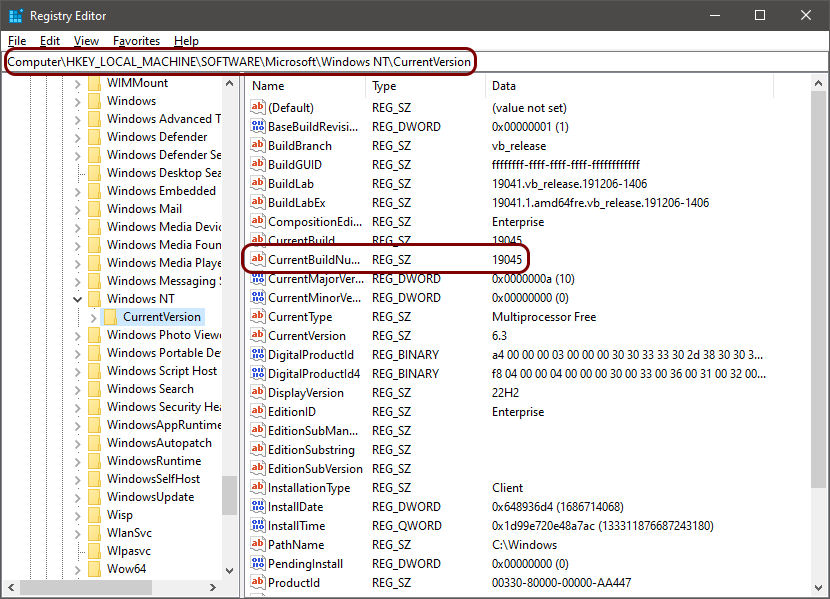
For example, 19045.
Note:
You can also use the Wikipedia list of Windows versions web page to correlate Windows build numbers with Windows
releases.
macOS
Linux
Important:
If you use different distributions such as Ubuntu and RHEL, the version numbers will be incompatible
with one another. In such cases, you must create separate groups and risk assessment policies and put machines with
different distributions in separate groups with those separate policies assigned. For distributions that do not have
version numbers, such as Arch Linux, Gentoo, and NixOS (unstable channel), there is no way to create a risk attribute
based on a version number.
Android
Note:
The exact path to the version information may be different in custom versions of Android.