
Add Google Workspace as a SAML identity provider for Zero Trust Network Access
In this topic, you will find instructions on how to add Google Workspace as a SAML identity provider for Portnox™ Zero Trust Network Access.
Prerequisites:
-
You must first integrate your Portnox Cloud instance with your Google Workspace repository as an authentication provider. For more information, see the following topic: Integrate with Google Workspace.
Create a new identity provider configuration in Portnox Cloud
In this section, you will create a new SAML identity provider configuration in Portnox Cloud
-
In the Cloud portal top menu, click on the Settings option.

-
In the Cloud portal left-hand side menu, click on the menu option.

-
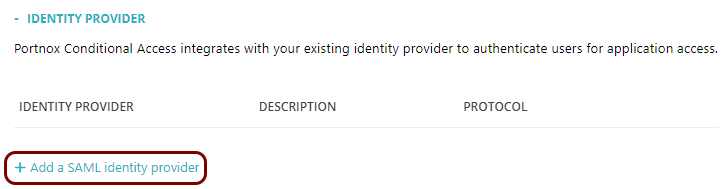
Click on the Add a new identity provider link and from the drop-down menu, select the
Add a SAML identity provider option.
-
In the Identity provider details section, enter an
Identity provider name and optionally a Description.

In this example, we used the name Google Workspace for the new identity provider but you can use any name you like.
Create a new Google Workspace application
In this section, you will access the Google Workspace administrative interface, and use it to create a new application that will handle integration with Portnox Cloud.
-
In the left-hand side menu, click on the following options:

-
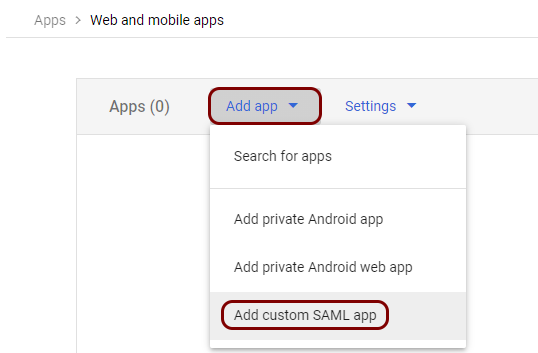
In the top menu of the Web and mobile apps screen, click on the Add app
button and select the Add custom SAML app option from the drop-down menu.
-
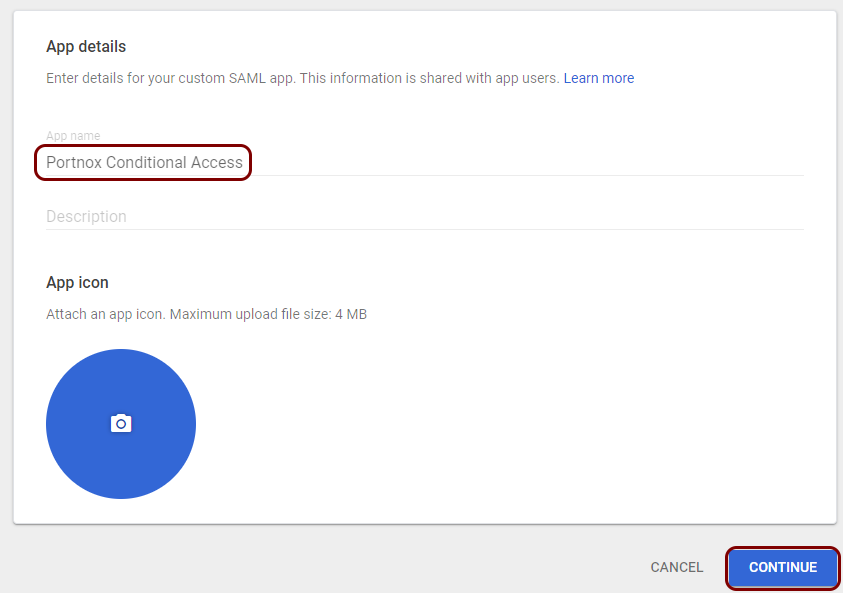
On the first page of the Add custom SAML app wizard, enter a name for the integration app and
then click on the Continue button.
-
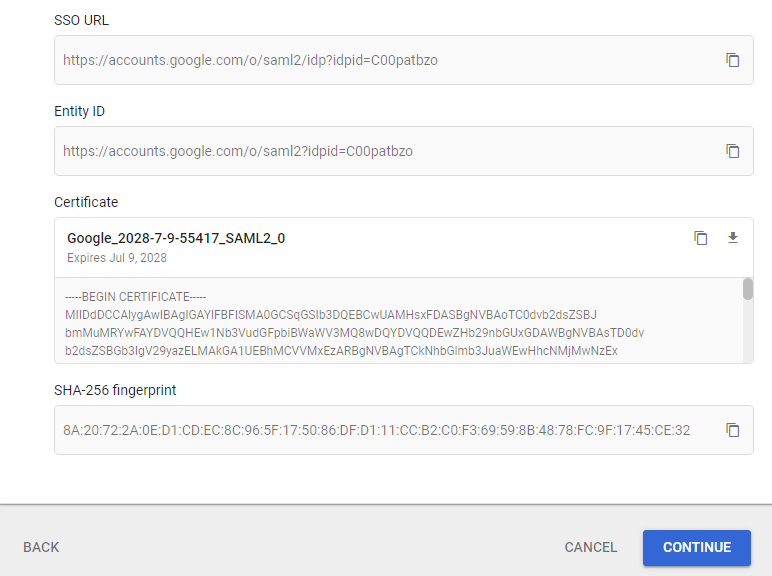
On the second page of the Add custom SAML app wizard, you will see configuration values for
the app.
Copy configuration values from the Google tab to the Portnox tab
In this section, you will copy the values displayed by the Google Workspace application setup section and paste them in the relevant fields in Portnox Cloud.
-
In the Google tab, click on the ⧉ icon next to the SSO
URL field to copy the value.

-
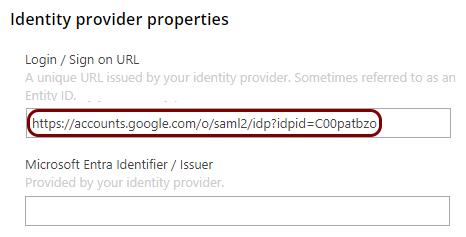
In the Portnox tab, in the Identity provider properties section, click on the empty field
under the Login / Sign on URL heading and paste the value copied from Google.
-
In the Google tab, click on the ⧉ icon next to the Entity
ID field to copy the value.

-
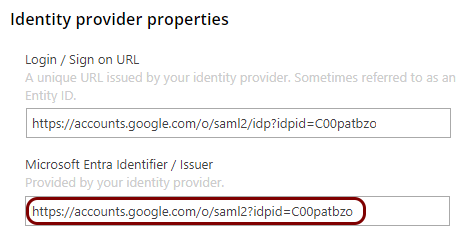
In the Portnox tab, in the Identity provider properties section, click on the empty field
under the Microsoft Entra Identifier / Issuer heading and paste the value copied from
Google.
-
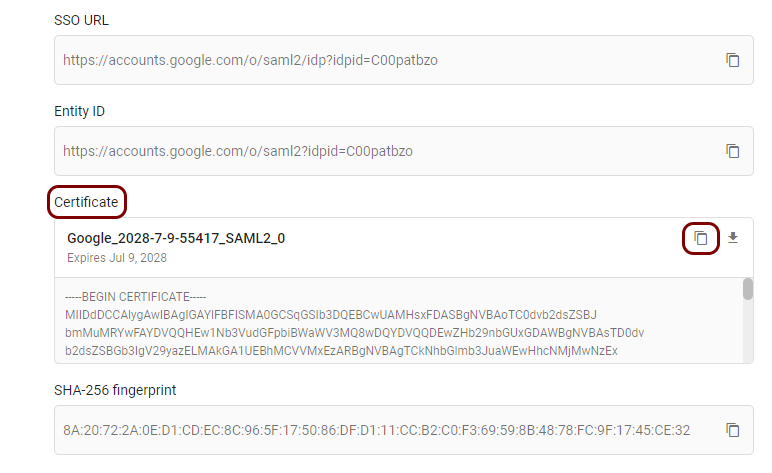
In the Google tab, click on the ⧉ icon next to the
Certificate field to copy the value.
-
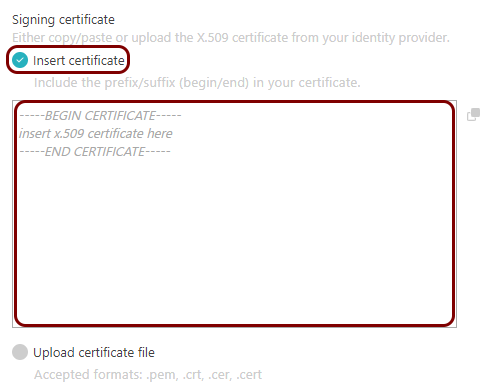
In the Portnox tab, in the section, click on the Add certificate link, select the Insert
certificate option and paste the copied value in the text field below. Then, click on the
Add certificate button.
-
In the Google tab, click on the Continue button. Keep this tab open.

Copy configuration values from the Portnox tab to the Google tab
In this section, you will copy the values displayed by Portnox Cloud and paste them in the relevant fields in the Google Workspace application setup section.
-
In the Portnox tab, in the Integration settings section, click on the ⧉ icon next to the Identifier (Entity ID) / Issuer URI
field to copy the value.

-
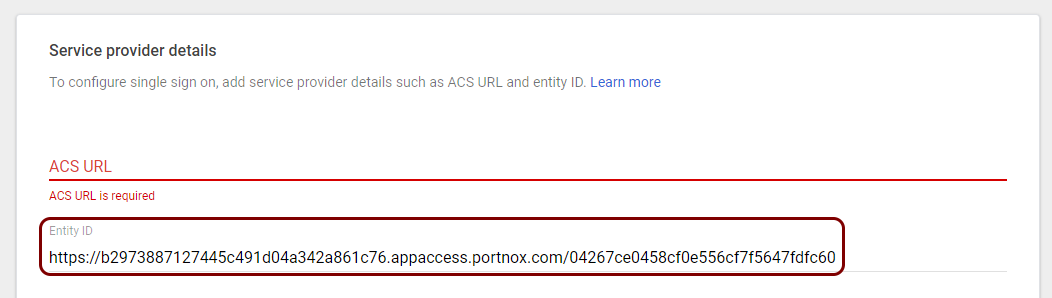
In the Google tab, paste the copied value into the Entity ID field .
-
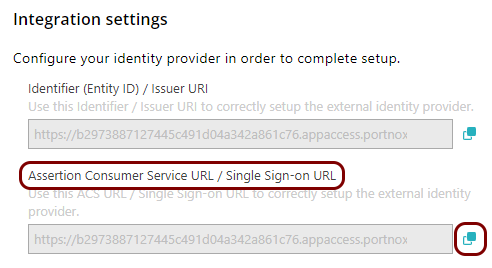
In the Portnox tab, in the Integration settings section, click on the ⧉ icon next to the Assertion Consumer Service URL / Single Sign-on
URL field to copy the value.
-
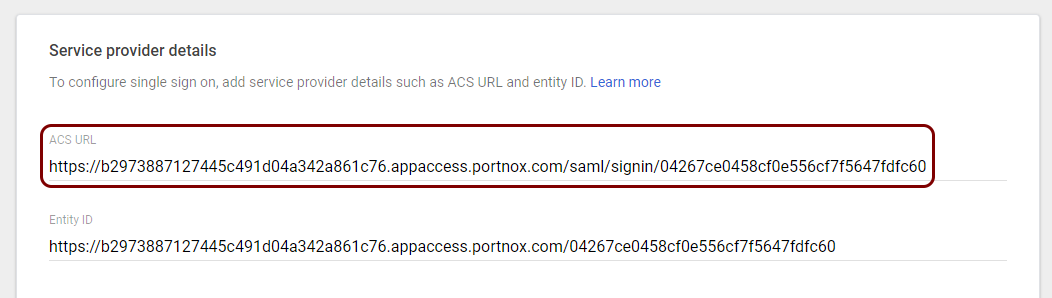
In the Google tab, paste the copied value into the ACS URL field .
Finalize the configuration
In this section, you will finalize the configuration in the Portnox Cloud and in Google Workspace.
-
Finalize the configuration in the Portnox tab.
-
Click on the Save and close button.
-
Click on the Save and close button.
-
Finalize the configuration in the Google tab.
-
In the Name ID section, in the Name ID format, select the
EMAIL value, and in the Name ID field, select the
Basic Information > Primary email option.

-
Click on the Continue button.

-
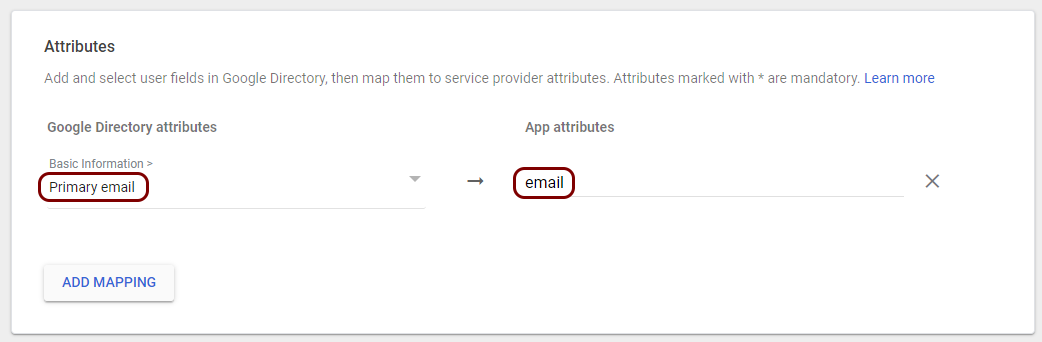
In the Attributes section, click on the ADD MAPPING button,
then in the Select field field, select the Primary email
value, and in the App attributes field, type email.
- Optional:
In the Attributes section, click on the ADD MAPPING button
again, then in the Select field field, select the Primary
email value, and in the App attributes field, type
eduPersonPrincipalName.
Note:This attribute is only required by some applications such as Datadog.

-
Click on the Finish button.

-
In the Name ID section, in the Name ID format, select the
EMAIL value, and in the Name ID field, select the
Basic Information > Primary email option.
Result: You have added Google Workspace as an identity provider for Portnox Zero Trust Network Access.
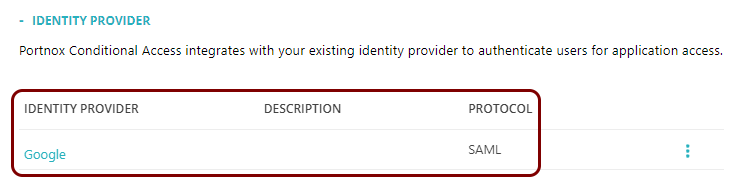
After configuring the identity provider, check your access privileges in Google Workspace to make sure that your users can access this application. You can also click on the TEST SAML LOGIN button to test your configuration.
