
Wi-Fi employee access – ExtremeCloud IQ
In this topic, you will learn how to configure ExtremeCloud IQ to work together with Portnox™ Cloud and 802.1X RADIUS authentication for Wi-Fi connections.
Create IP objects for the Portnox Cloud RADIUS servers
In this section, you will create IP objects for the Portnox™ Cloud RADIUS servers. ExtremeCloud IQ uses these IP objects to reference IP addresses in external RADIUS server entries, which you will create in the next section.
-
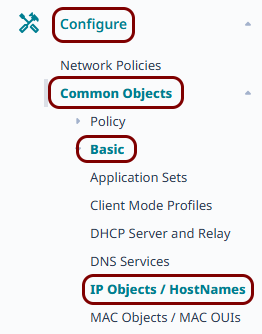
In the left-hand side menu of the ExtremeCloud IQ web interface, click on the following menu options: or go to https://va.extremecloudiq.com/#/common/ipobjectmanage.
-
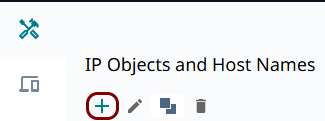
In the IP Objects and Host Names pane, click on the +
icon in the toolbar to create a new IP object.
-
In the New IP Object or Host Name pane, configure the new IP object:
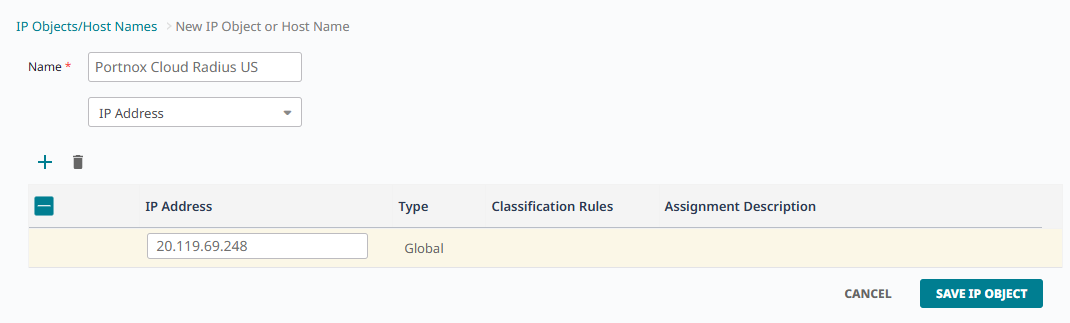
- In the Name field, enter a display name for this object, for example, the name of the corresponding Portnox Cloud RADIUS server.
- Leave the type field set to IP Address.
- In the IP Address field of the only row in the table, enter the Cloud RADIUS IP value from Portnox Cloud.
- Click on the SAVE IP OBJECT button.
-
If you use two Cloud RADIUS servers in both regions, repeat the above steps for the second RADIUS server.
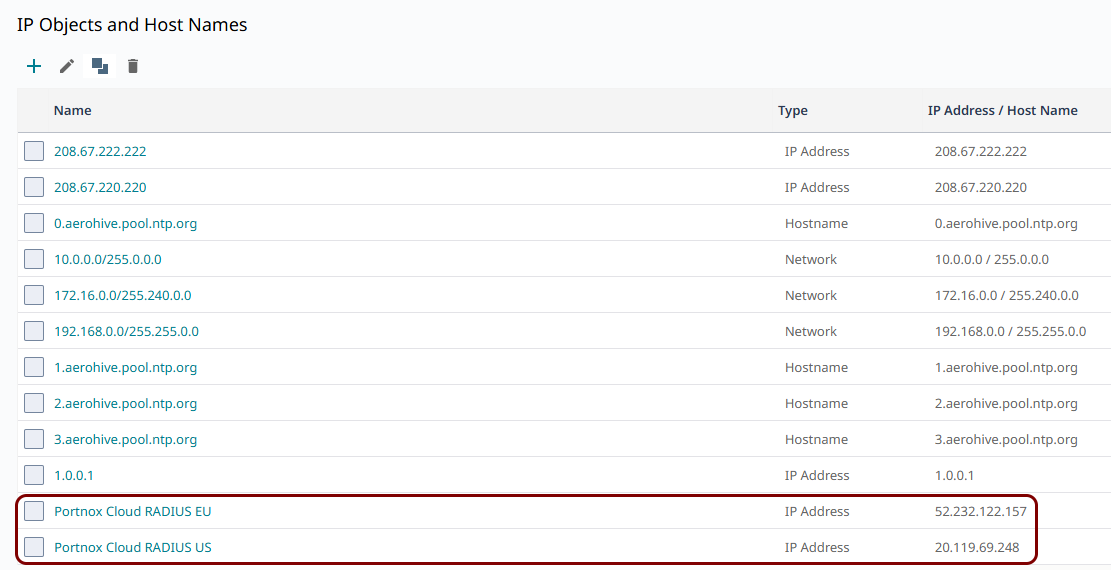
The above screenshot shows an example configuration with two added IP objects, one for each Cloud RADIUS region. Adjust the names and IP addresses to your tenant configuration.
Create the external RADIUS servers
In this section, you will create external RADIUS server entries for the Portnox™ Cloud RADIUS servers, using the IP objects that you created earlier. You will use these servers later when you configure your SSIDs.
-
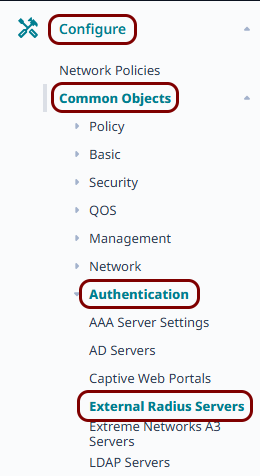
In the left-hand side menu of the ExtremeCloud IQ web interface, click on the following menu options: or go to https://va.extremecloudiq.com/#/common/extservers.
-
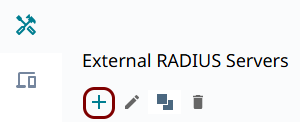
In the External RADIUS Servers pane, click on the +
icon in the toolbar to create a new external RADIUS server.
-
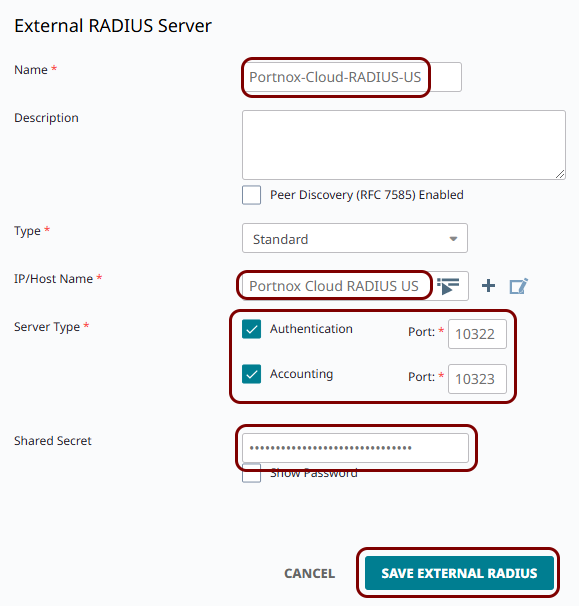
In the External RADIUS Server pane, enter the details of the Portnox Cloud RADIUS server that you created earlier:
-
If you use two Cloud RADIUS servers in both regions, repeat the above steps for the second RADIUS server.
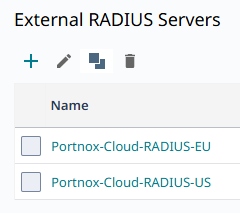
The above screenshot shows an example configuration with two external RADIUS server entries, one for each Cloud RADIUS region. Adjust the names, IP objects, and port numbers to your tenant configuration.
Create an SSID for 802.1X authentication
In this section, you will create a new SSID and configure it for WPA2 Enterprise authentication, using the external RADIUS servers that you created earlier.
-
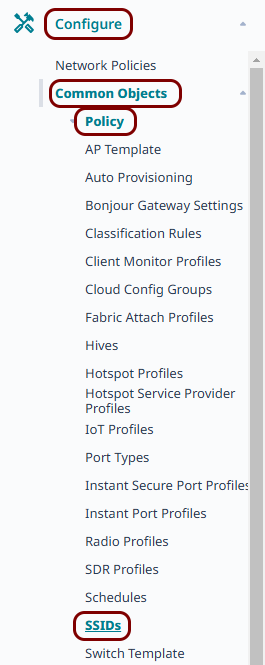
In the left-hand side menu of the ExtremeCloud IQ web interface, click on the following menu options: or go to https://va.extremecloudiq.com/#/common/ssidmanage.
-
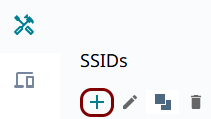
In the SSIDs pane, click on the + icon in the toolbar
to create a new SSID.
-
In the Wireless Network section, enter the Name (SSID) and the
Broadcast Name for the secure SSID that you want to create, and activate the relevant
frequency checkboxes in the Broadcast SSID Using field.
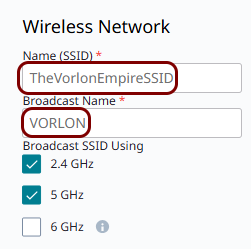 Note:The value of the Name (SSID) field is only used internally by ExtremeCloud IQ. The name visible for clients is the Broadcast Name.
 -
Scroll down to the SSID Usage section, and on the SSID Authentication
tab, select the Enterprise option, then in the Key Management field,
select the WPA2-802.1X option.
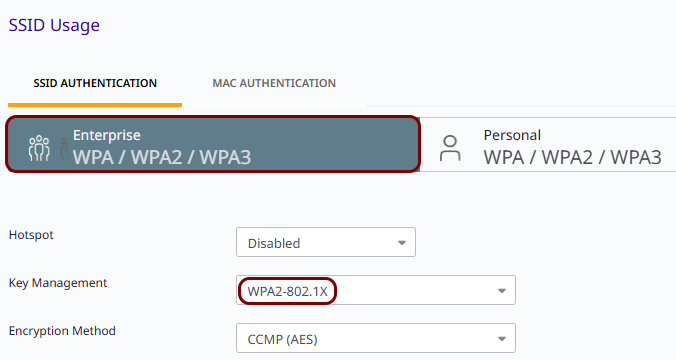
Leave the remaining settings, such as Hotspot, Encryption Method, Enable MLO, and Enable Captive Web Portal, at their default values unless your environment requires otherwise.
Note:The process for configuring the SSID for WPA3 Enterprise authentication is almost identical. -
Scroll down to the Authentication Settings section:
-
In the Authenticate via RADIUS Server subsection, click on the + icon next to the Default RADIUS Server Group
field.
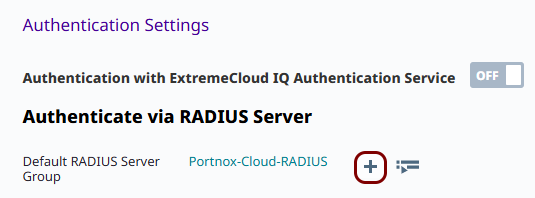
-
In the Configure RADIUS Servers pane, in the RADIUS Server Group
Name field, enter a name for the RADIUS server group, then on the EXTERNAL RADIUS
SERVER tab, activate the checkboxes next to the external RADIUS servers that you
created earlier, and click on the SAVE RADIUS button.
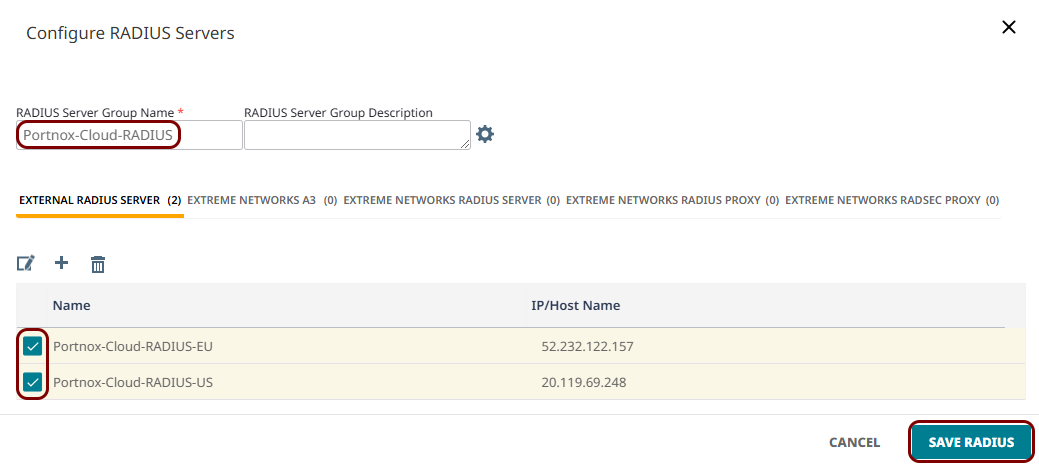 Note:The EXTERNAL RADIUS SERVER tab lists every external RADIUS server that you created, including any RADSEC-type servers. Select only the Standard-type servers for this SSID.
 -
The SSID page now shows the new RADIUS server group selected in the Default RADIUS Server
Group field, with the servers that you selected listed in the table below it.

-
In the Authenticate via RADIUS Server subsection, click on the + icon next to the Default RADIUS Server Group
field.
Result: You created an SSID that authenticates employee Wi-Fi devices using 802.1X and the Portnox Cloud RADIUS servers.
Optional: Create an SSID for MAC-based authentication
This is an optional task. Follow this task only if you want to authenticate devices, such as IoT devices, that do not support 802.1X, using their MAC address instead. Skip this task if you do not need MAC-based authentication.
-
In the left-hand side menu of the ExtremeCloud IQ web interface, click on the following menu options: or go to https://va.extremecloudiq.com/#/common/ssidmanage.
-
In the SSIDs pane, click on the + icon in the toolbar
to create a new SSID.
-
In the Wireless Network section, enter the Name (SSID) and the
Broadcast Name for the SSID that you want to create, and activate the relevant frequency
checkboxes in the Broadcast SSID Using field.
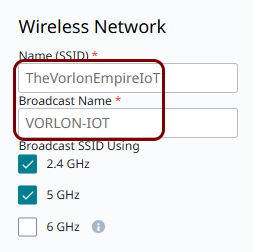 Note:The value of the Name (SSID) field is only used internally by ExtremeCloud IQ. The name visible for clients is the Broadcast Name.
 -
Scroll down to the SSID Usage section, and on the SSID Authentication
tab, select the Open option.
 Note:Do not select Enterprise here. Since MAC authentication becomes the sole means of access control on an open SSID, you do not need WPA2 or WPA3 Enterprise authentication on this SSID.
 -
On the same SSID Usage section, click on the MAC Authentication tab,
and set the MAC Authentication switch to ON. In the
Authentication Protocol field, leave the default PAP option
selected.
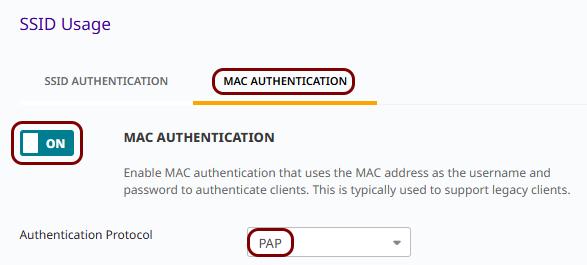
-
Scroll down to the Authentication Settings section:
-
In the Authenticate via RADIUS Server subsection, click on the + icon next to the Default RADIUS Server Group
field.
-
In the Configure RADIUS Servers pane, in the RADIUS Server Group
Name field, enter a name for the RADIUS server group, then on the EXTERNAL RADIUS
SERVER tab, activate the checkboxes next to the external RADIUS servers that you
created earlier, and click on the SAVE RADIUS button.
Note:The EXTERNAL RADIUS SERVER tab lists every external RADIUS server that you created, including any RADSEC-type servers. Select only the Standard-type servers for this SSID.
-
The SSID page now shows the new RADIUS server group selected in the Default RADIUS Server
Group field, with the servers that you selected listed in the table below it.
-
In the Authenticate via RADIUS Server subsection, click on the + icon next to the Default RADIUS Server Group
field.
Result: You created a separate SSID that authenticates IoT devices by their MAC address using the Portnox Cloud RADIUS servers on the basis of MAC-based accounts.
Assign SSIDs to a network policy and update your access points
In this section, you will add any SSIDs that you created to a network policy, and push the updated policy to your access points. Changes to your network policy do not take effect until you complete this section.
-
In the left-hand side menu of the ExtremeCloud IQ web interface, click on the following menu options: .
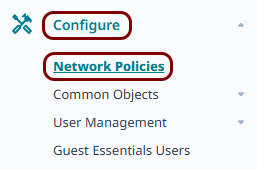
-
On the tile representing the network policy that you want to update, click on the ADD
NETWORK button.
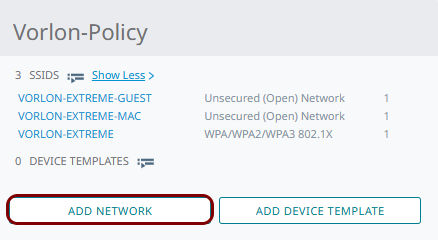
Result: The network policy wizard opens.
-
Click on the Select icon.
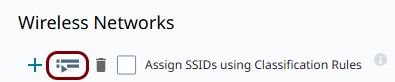
Result: The SSIDs window opens.
-
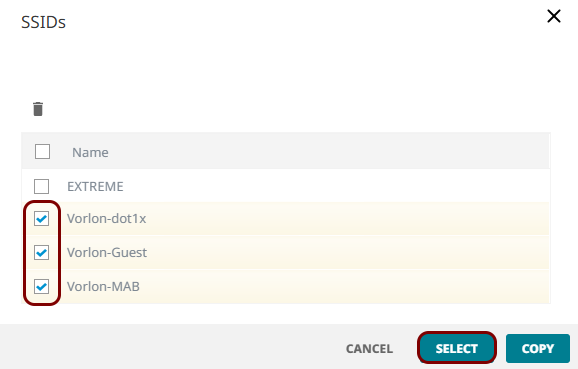
In the SSIDs window, activate the checkbox(es) next to the SSIDs that you created, and click
on the SELECT button.
-
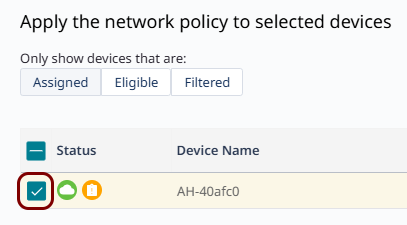
In the wizard, click on the 6 Deploy Policy step.

Result: The Apply the network policy to selected devices step opens.
-
Activate the checkbox(es) next to the access points that you want to update and click on the
UPLOAD button.
-
In the Device Update window, select the Complete Configuration Update
option, and click on the PERFORM UPDATE button.
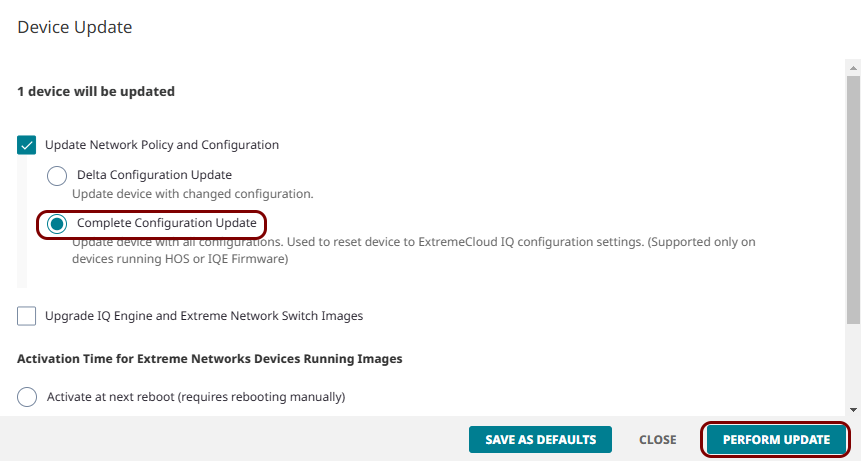 Note:We recommend a complete configuration update over a delta update, since it resets the device to match ExtremeCloud IQ's configuration exactly, rather than only applying changes. A delta update can leave stale settings on the device if earlier updates failed or were only partially applied.
Result: Your access points receive the updated network policy, and clients can now access the SSIDs that you created.