Integrate with Google SecOps
In this topic, you will learn how to send Portnox™ Cloud alerts to Google SecOps.
Create an API key in Google Cloud console
In this section, you will create an API key in Google Cloud console, which is required for integration between Portnox Cloud and Google SecOps.
-
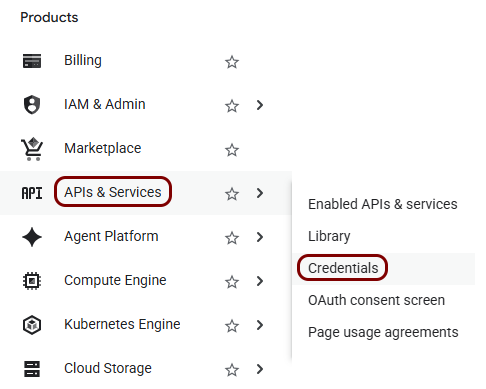
In the left-hand menu, select the option.
-
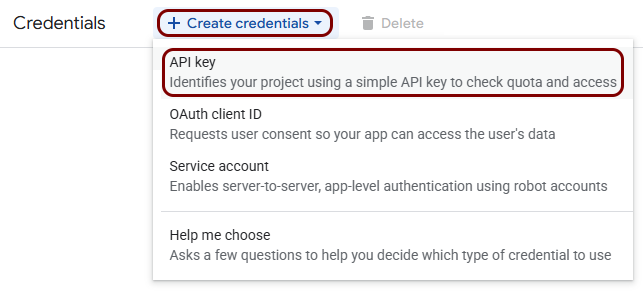
In the top bar, click on the Create credentials button and then select the API
key option.
-
In the Create API key pane:
-
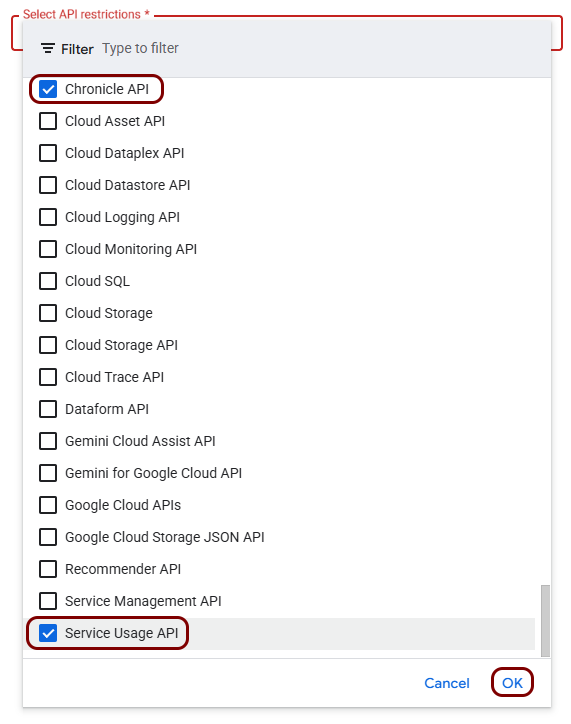
In the Select API restrictions field, select the Chronicle
API and Service Usage API options.
-
In the Select API restrictions field, select the Chronicle
API and Service Usage API options.
-
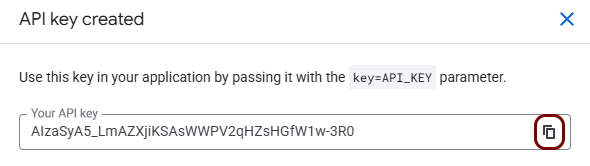
In the API key created pane, click on the ⧉ icon to
copy the API key to the clipboard. Then, paste the key into a temporary text file – you will need it later to
configure Portnox Cloud.
 Note:You can also copy the API key later by clicking on the Show key option in the API Keys table in the Credentials pane.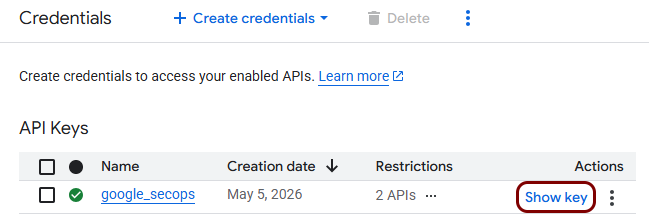
Create a Portnox CEF feed in Google SecOps
In this section, you will create a Portnox CEF feed in Google SecOps that will receive the data from Portnox Cloud.
-
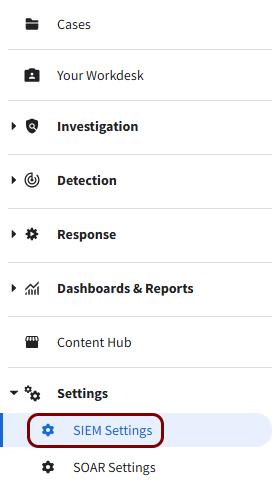
In the left-hand menu, select the option.
-
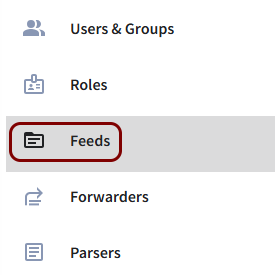
In the left-hand menu of the SIEM Settings pane, select the Feeds
option.
-
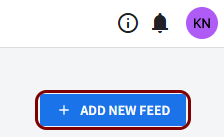
In the top bar, on the right-hand side, click on the ADD NEW FEED button.
-
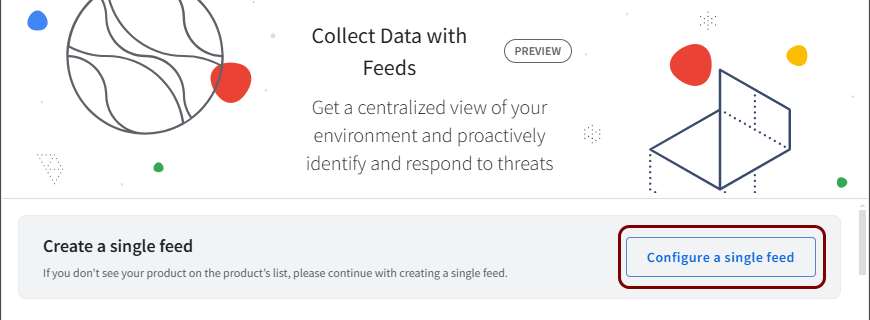
On the Collect Data with Feeds screen, click on the Configure a single
feed button.
-
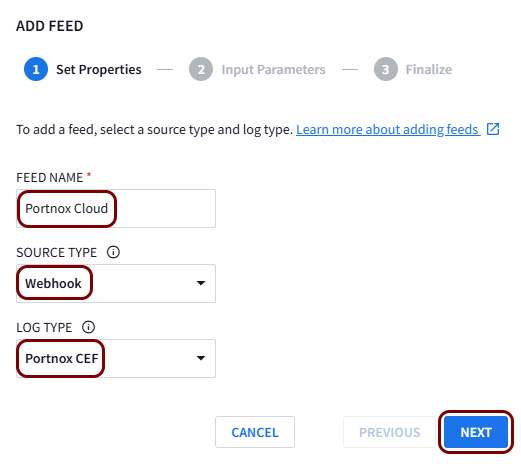
In the ADD FEED wizard:
-
Click on the NEXT button to proceed to the next wizard step.
-
Click on the NEXT button to proceed to the next wizard step.
-
In the feed configuration window (its name is the same as the name of the feed):
-
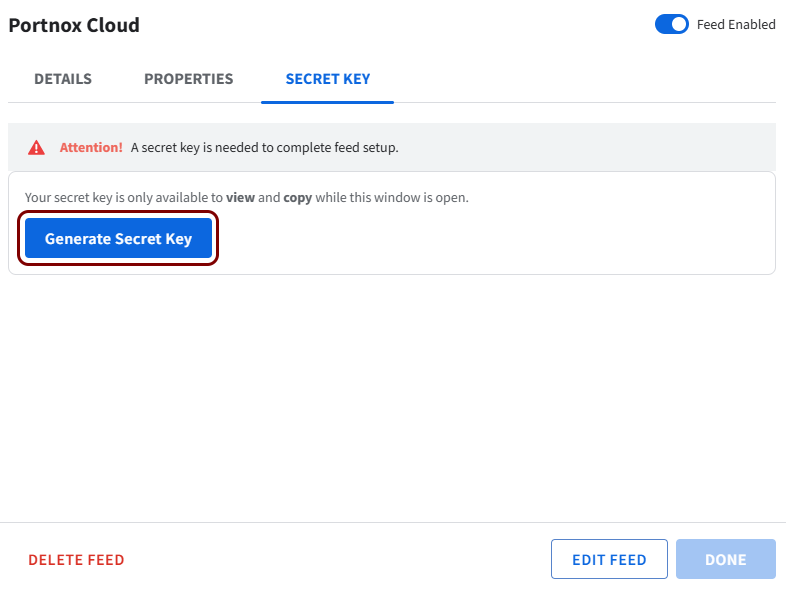
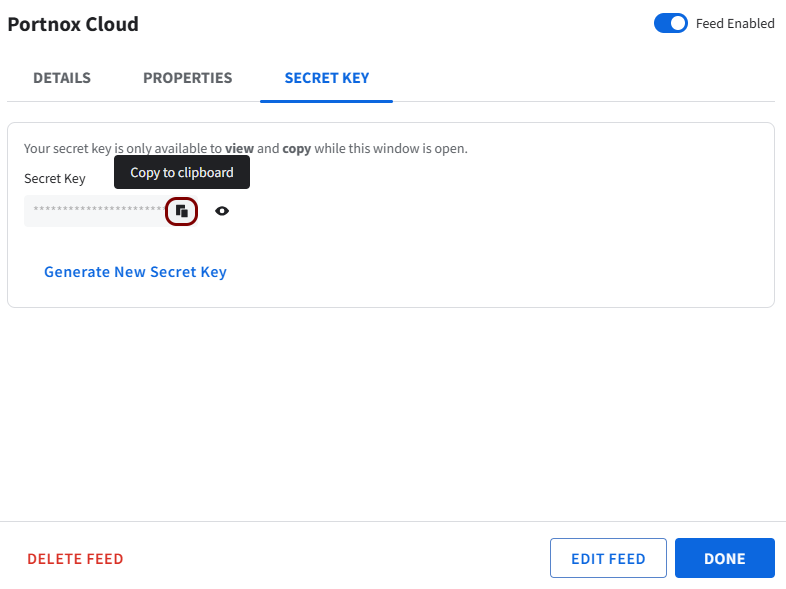
In the SECRET KEY tab (opened by default after submitting the feed), click on the
Generate Secret Key button.
-
Hover your mouse cursor over the Secret Key field to show the ⧉ button, and then click on the ⧉
button to copy the secret key. Then, paste the key into a temporary text file – you will need it later to
configure Portnox Cloud.
-
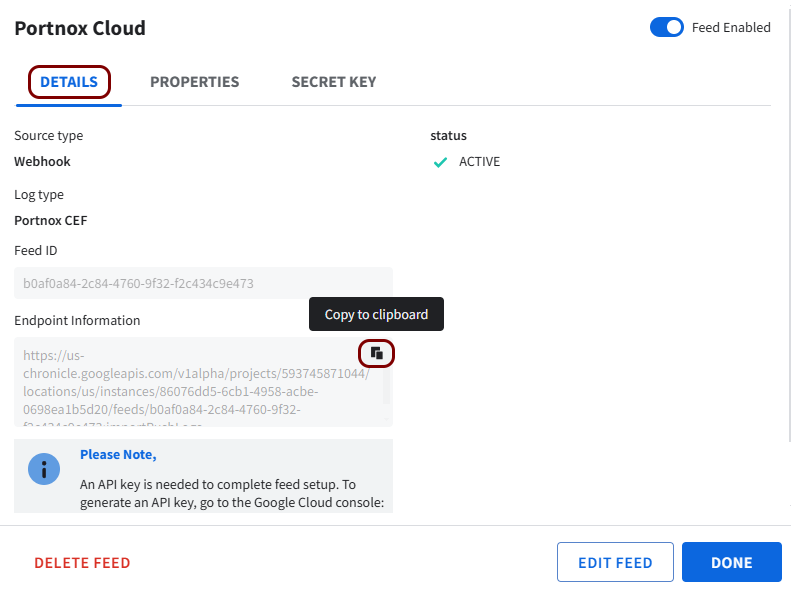
Click on the DETAILS tab, hover your mouse cursor over the Endpoint
information field to show the ⧉ button, and then
click on the ⧉ button to copy the HTTPS endpoint value. Then, paste
the HTTPS endpoint value into a temporary text file – you will need it later to configure Portnox
Cloud.
-
In the SECRET KEY tab (opened by default after submitting the feed), click on the
Generate Secret Key button.
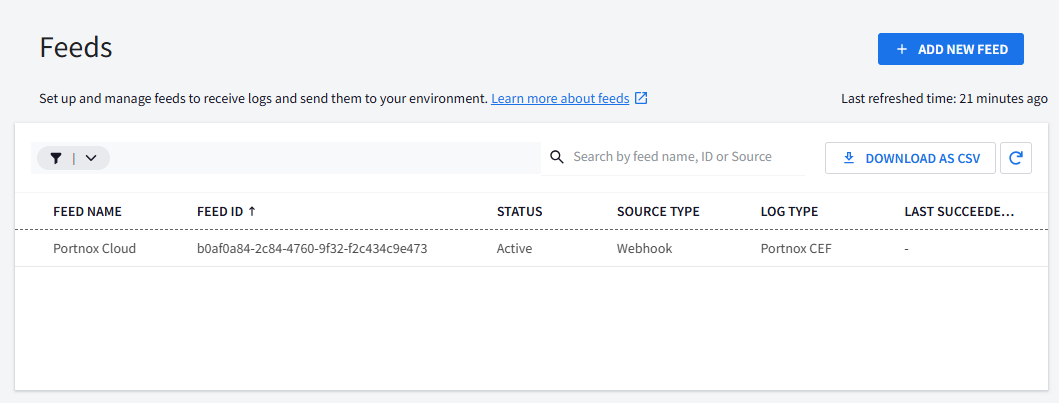
Result: Your Google SecOps feed is ready to receive data from Portnox Cloud.
Configure Portnox Cloud
In this section, you will learn how to configure Portnox™ Cloud to send alert data to the Google SecOps feed using the Google Cloud API key.
-
In the Cloud portal top menu, click on the Settings option.

-
In the Cloud portal left-hand menu, click on the option.
-
Create a new SIEM integration with Google SecOps.
-
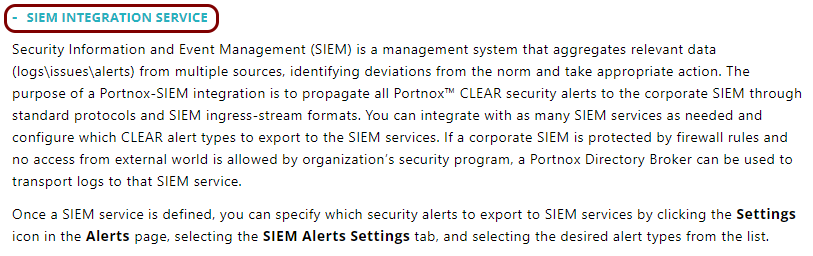
In the SIEM integration service section, click on the Add a new SIEM
integration link.

The New SIEM integration section opens.
-
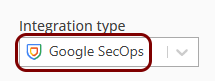
In the Integration type field, select the Google SecOps
option.
-
In the Name field, enter the name for the new integration.
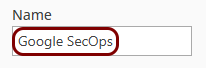
In this example, we used the name Google SecOps but you can use any name you like.
-
In the Status field, select the Enabled option.

-
In the HTTPS endpoint field, paste the HTTPS endpoint that you copied from the
Google SecOps feed configuration and saved in a temporary text file.

-
In the API Key field, paste the API key that you copied from the Google Cloud API
key configuration and saved in a temporary text file.
-
In the Access Secret field, paste the secret key that you copied from the Google
SecOps configuration and saved in a temporary text file.
-
Click on the Save button to add the integration.
- Optional:
Test the configuration by clicking on the Test button.

-
In the SIEM integration service section, click on the Add a new SIEM
integration link.
- Optional:
To configure the types of alerts sent to your SIEM solution, see the following topic: Portnox Cloud alerts.
Note:To learn more about the content and format of alert messages sent to SIEM solutions, see the following topic: Format and content of alert information for SIEM.
You can also send all of the Portnox Cloud activity log (activities performed by administrators in Portnox Cloud) to your SIEM solution. To do this, go to , activate the Activity log switch, and click on the Save button.
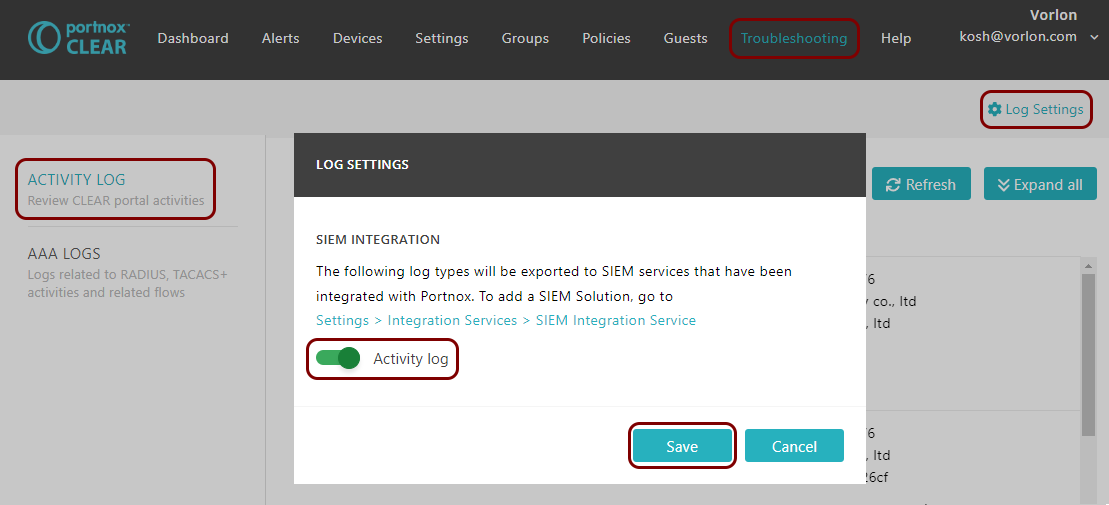
Result: Google SecOps is receiving alerts from Portnox Cloud.
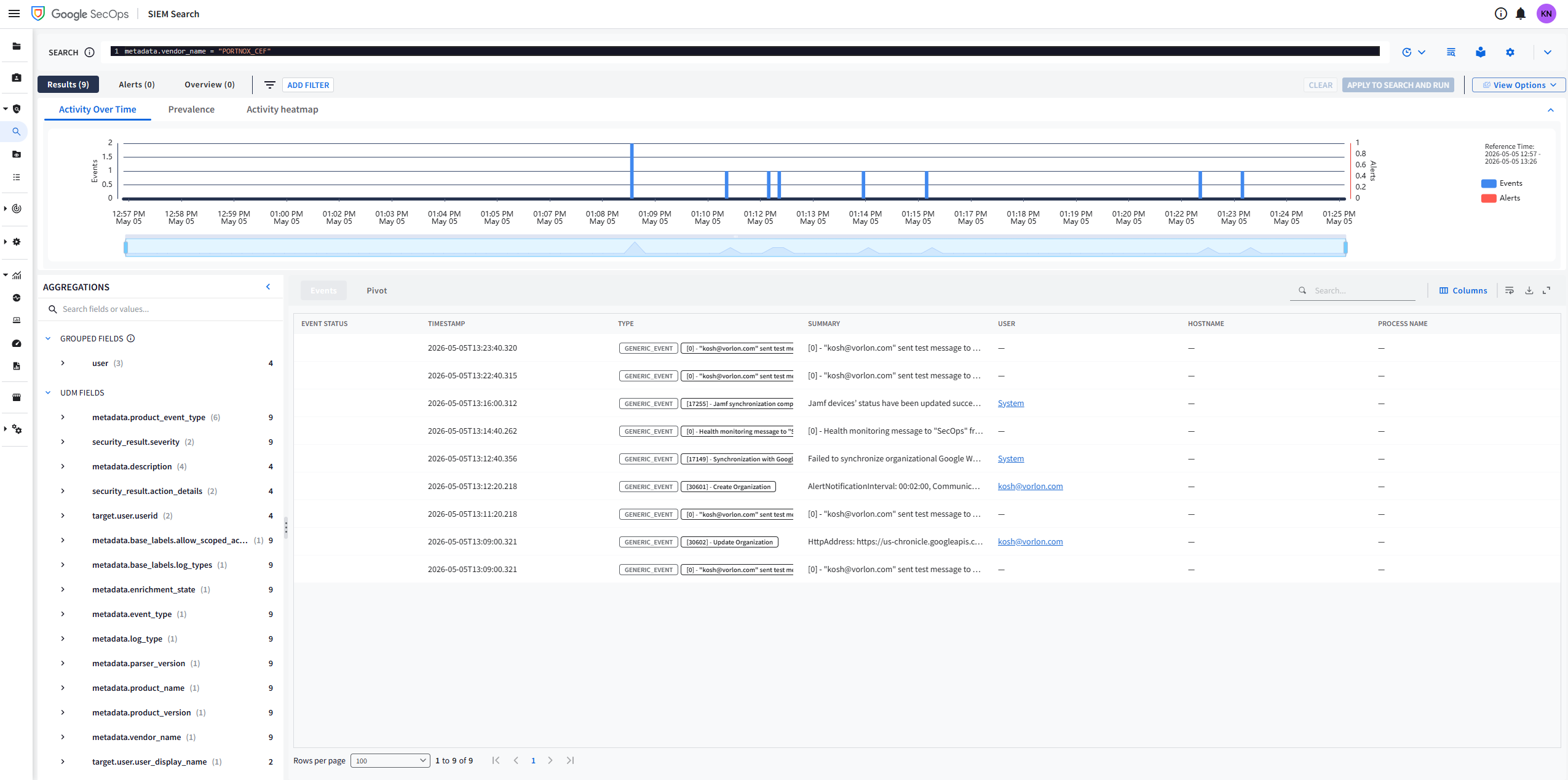
You can confirm the integration, for example, by running the following query in :
metadata.vendor_name = "PORTNOX_CEF"