
Onboard iOS devices with certificates using IBM MaaS 360 UEM and SCEP
In this topic, you will learn how to deploy Portnox™ Cloud certificates to iOS devices via MaaS 360 UEM and SCEP.
Turn on the Portnox Cloud SCEP services
In this section, you will configure Portnox™ Cloud to provide SCEP services to your devices.
If you have previously turned on the Portnox Cloud SCEP services, skip to the later steps.
Portnox Cloud SCEP services let devices contact the Cloud SCEP server and get a unique certificate for the device or for the specific user of the device.
-
In the Cloud portal top menu, click on the Settings option.

-
In the Cloud portal left-hand side menu, click on the option.
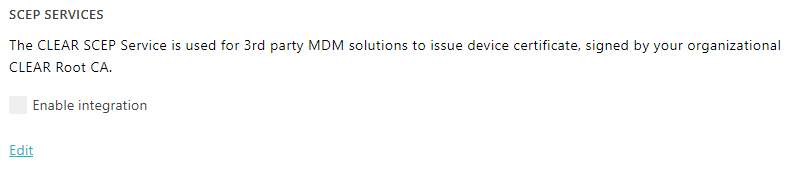
-
Enable integration with SCEP services.
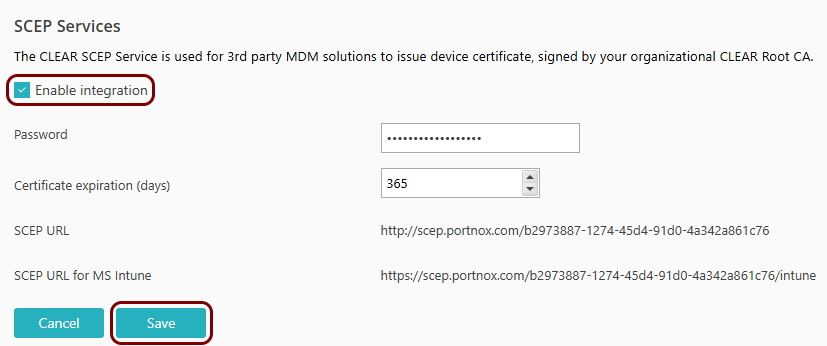
- Click on the Edit link.
- Activate the Enable integration checkbox.
- Click on the Save button.
-
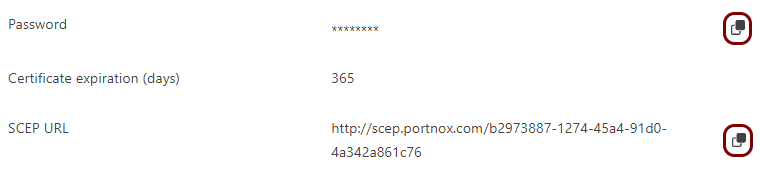
Click on the ⧉ icon next to the Password field to
copy the SCEP password, and paste it in a text file for later use.
Download the root CA certificate from Portnox Cloud
In this section, you will download the Portnox™ Cloud root CA certificate from the Cloud portal.
You need the root CA certificate so that your managed devices can verify the validity of Cloud RADIUS servers, which have certificates signed by this root CA certificate. If the root CA certificate is not distributed to managed devices, some devices may show a security warning each time that the user connects to networks managed by Portnox Cloud.
-
In the Cloud portal top menu, click on the Settings option.
-
In the Cloud portal left-hand side menu, click on the option.
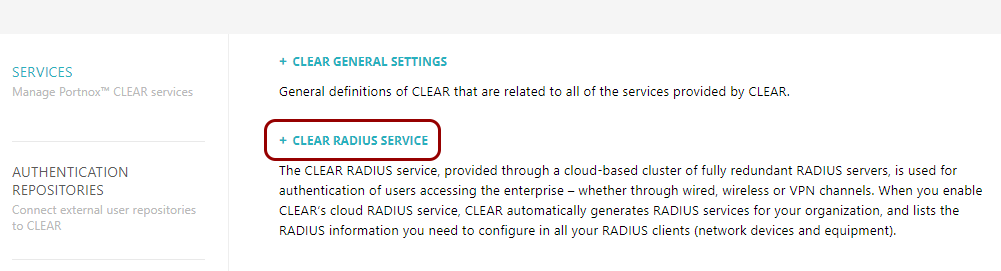
The right-hand pane shows the list of active servers.

-
Click on the Download root certificate link to download the root CA certificate.
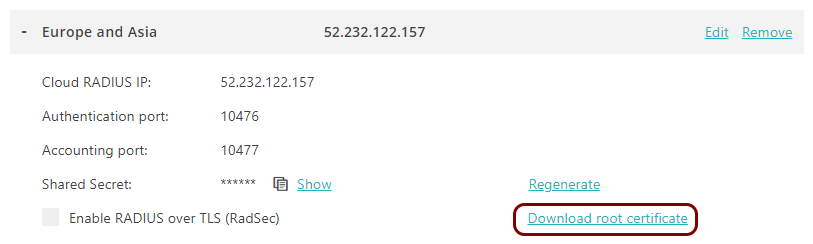
Save the file on your disk to use it later. The default name of the file is rootCertificate.cer.
Optional: Hand over information from the Portnox Cloud team to the MaaS 360 team
In this section, you will learn what information was collected in previous steps from Portnox Cloud, which is needed to configure MaaS 360 to work with Portnox Cloud.
If different people are responsible for managing Portnox Cloud and MaaS 360, here is the information you need to hand over:
-
The URL of the Portnox Cloud SCEP server. For example, https://scep.portnox.com/b2973887-1274-45d4-91d0-4a342a861c76.
-
The password for the SCEP server.
-
The root CA certificate file in the Base-64 encoded X.509 format. For example, rootCertificate.cer.
Install the IBM Cloud Extender on a Windows machine
In this section, you will download IBM Cloud Extender and install it on a Windows virtual or physical machine. Cloud Extender is required by MaaS 360 to support the SCEP protocol.
-
In your browser, go to the MaaS 360 Login URL.
You received this URL in the initial email from MaaS 360, which IBM sent to you after you registered for MaaS 360.

-
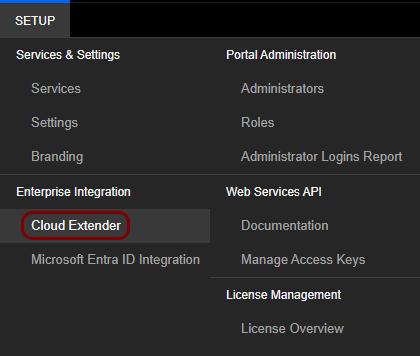
In your MaaS 360 dashboard, in the top menu, select .
-
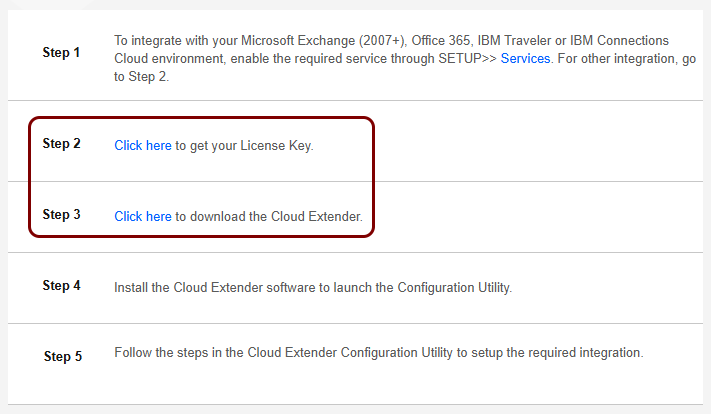
Follow steps 2 and 3 on the screen to get your Cloud Extender license key (sent to your email) and download the
Cloud Extender installer file (MaaS360_Cloud_Extender.exe).
 Note:If the Windows machine where you want to install Cloud Extender is different than the machine you are accessing the dashboard with, copy the file to the destination machine.
 -
Run the installer file on the destination machine and follow the installer wizard steps to install the
software.
When installing Cloud Extender, you will be asked to enter the license key (received via email) and your Account ID. You can find the Account ID in your MaaS 360 dashboard by clicking on the user icon in the top-right corner of the screen.
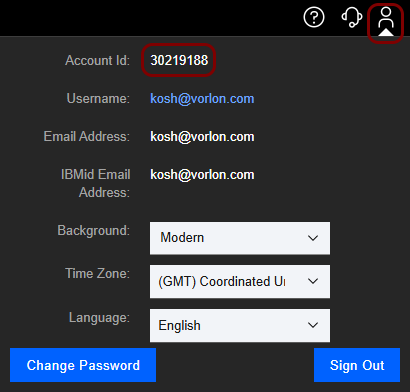
Result: You have installed Cloud Extender on the destination Windows machine.
Create the SCEP CA configuration in Cloud Extender
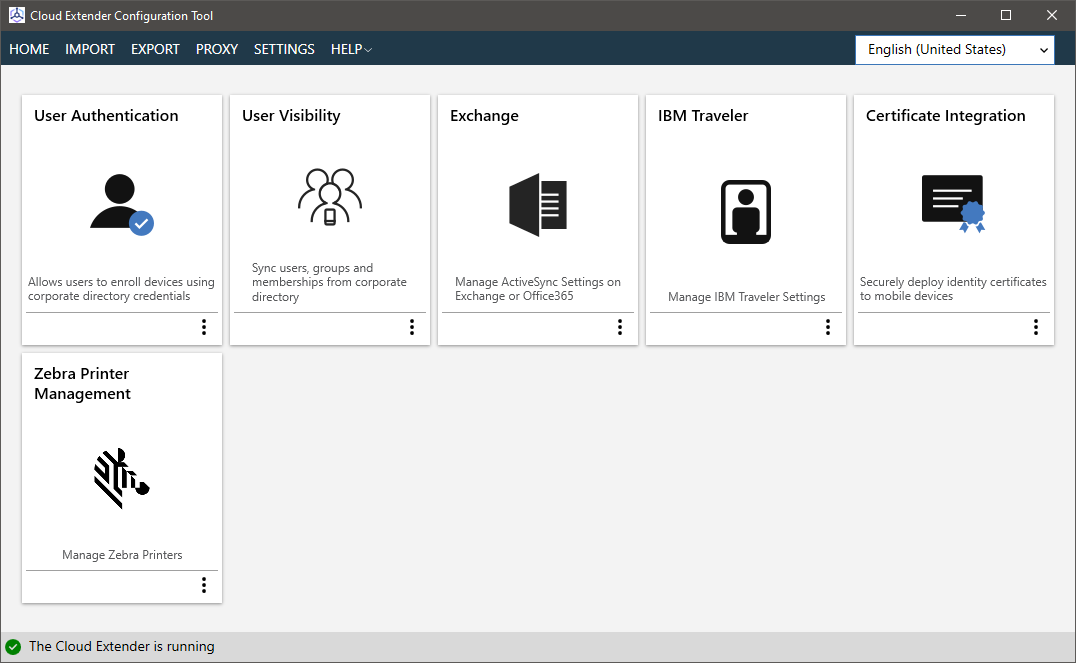
In this section, you will create the SCEP CA configuration using the Cloud Extender Configuration Tool on the destination Windows machine. This configuration and this template will be used by the profiles that you will create later in the MaaS 360 tenant.
-
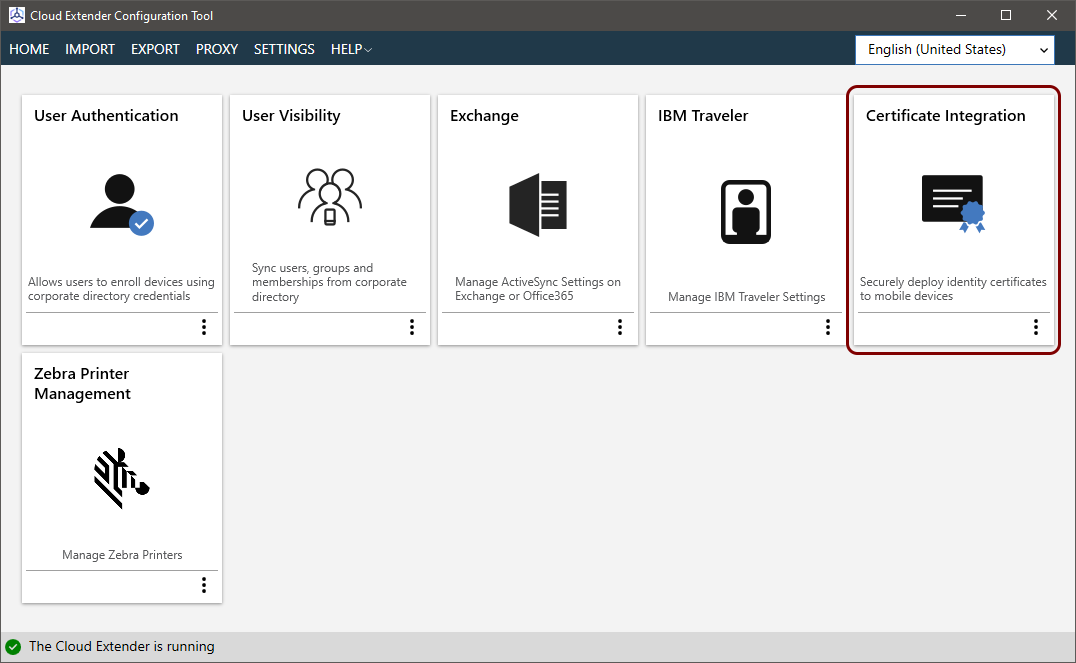
In the Cloud Extender Configuration Tool, click on the Certificate Integration tile.
-
In the Certificate Integration pane, click on the Add New Template
button and then select the following options:
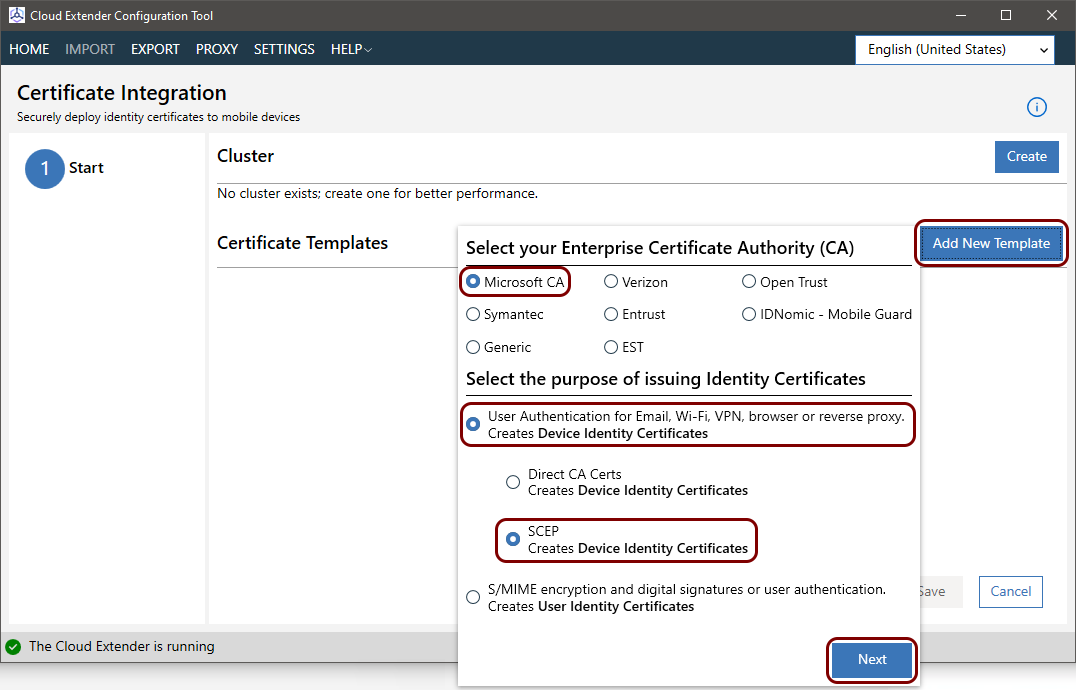
- In the Select your Enterprise Certificate Authority (CA) section, select the Microsoft CA option.
- In the Select the purpose of issuing Identity Certificates section, select the option.
- Click on the Next button.
-
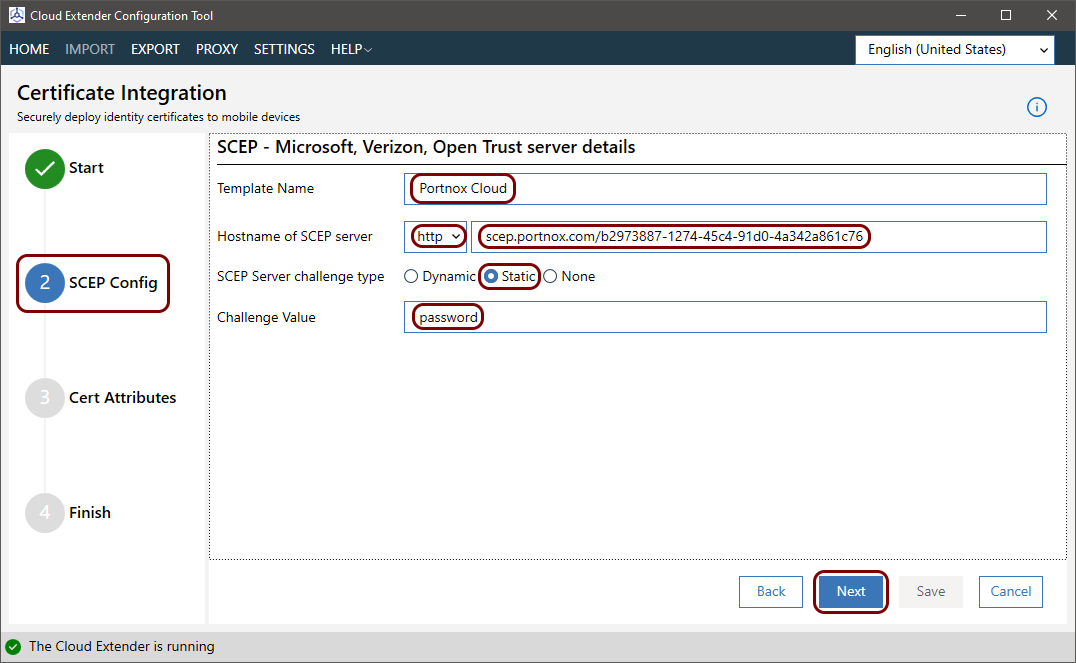
In the SCEP Config step:
-
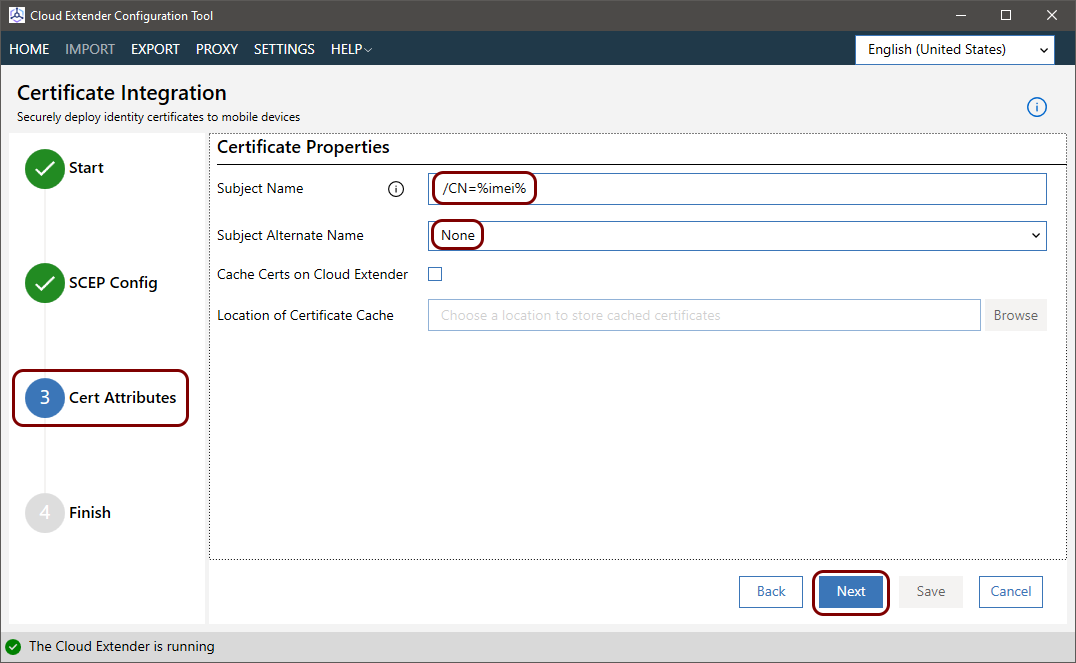
In the Cert Attributes step:
-
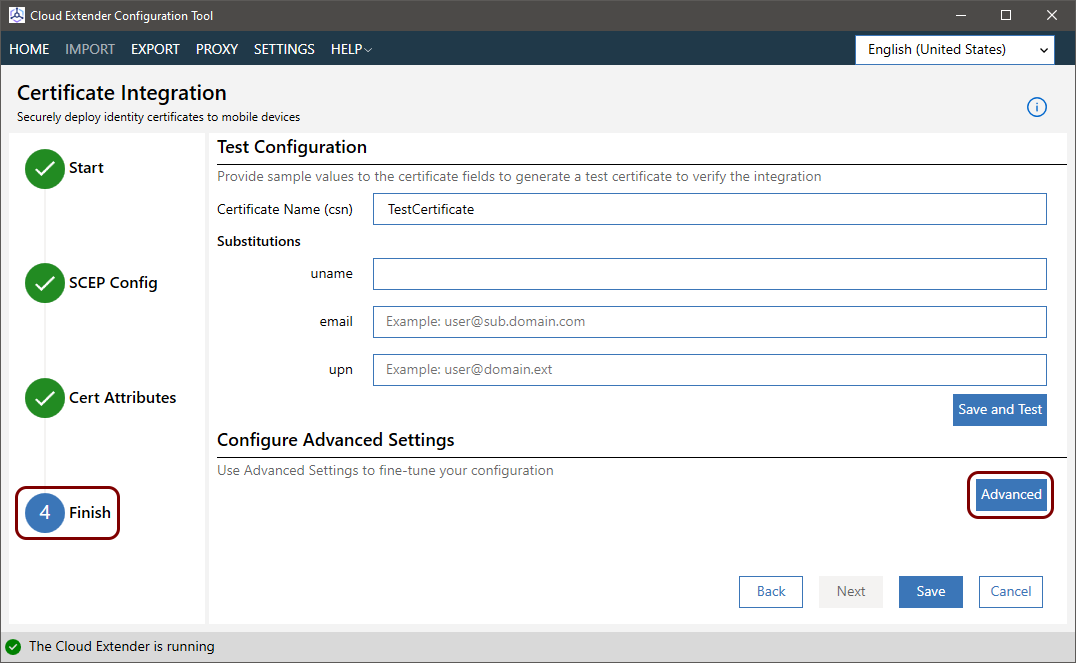
In the Finish step, click on the Advanced button.
-
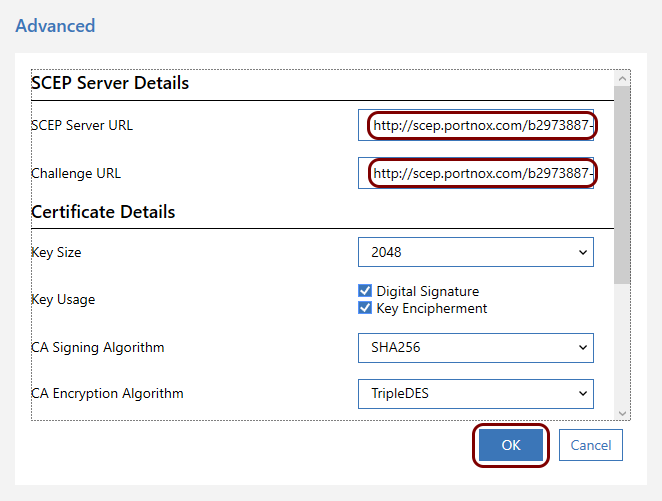
In the Advanced window:
-
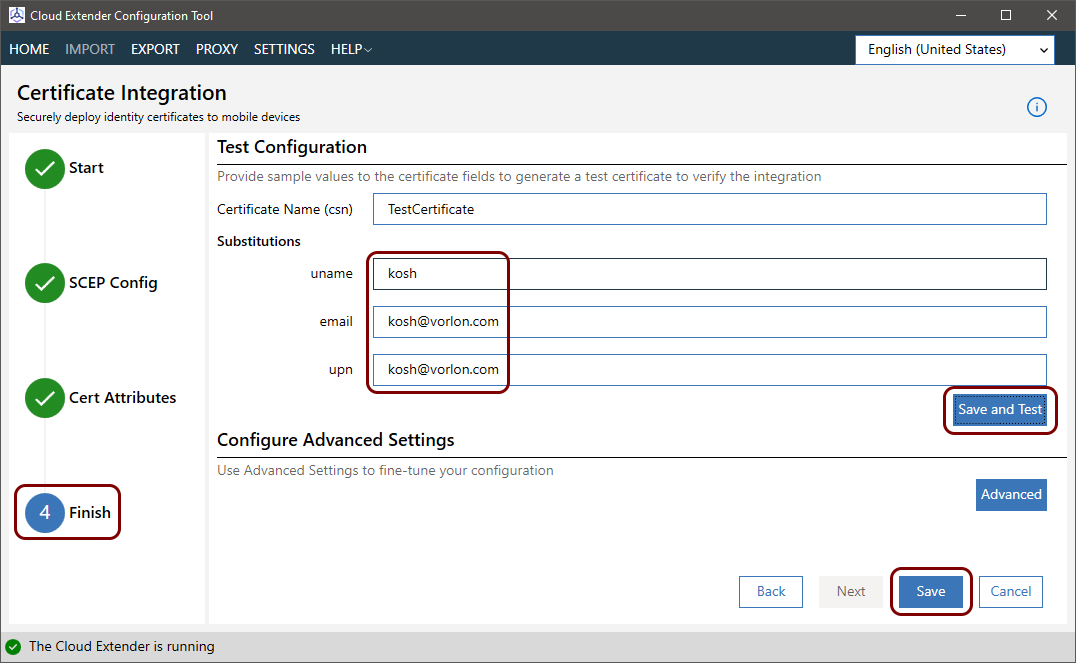
In the Finish step:
-
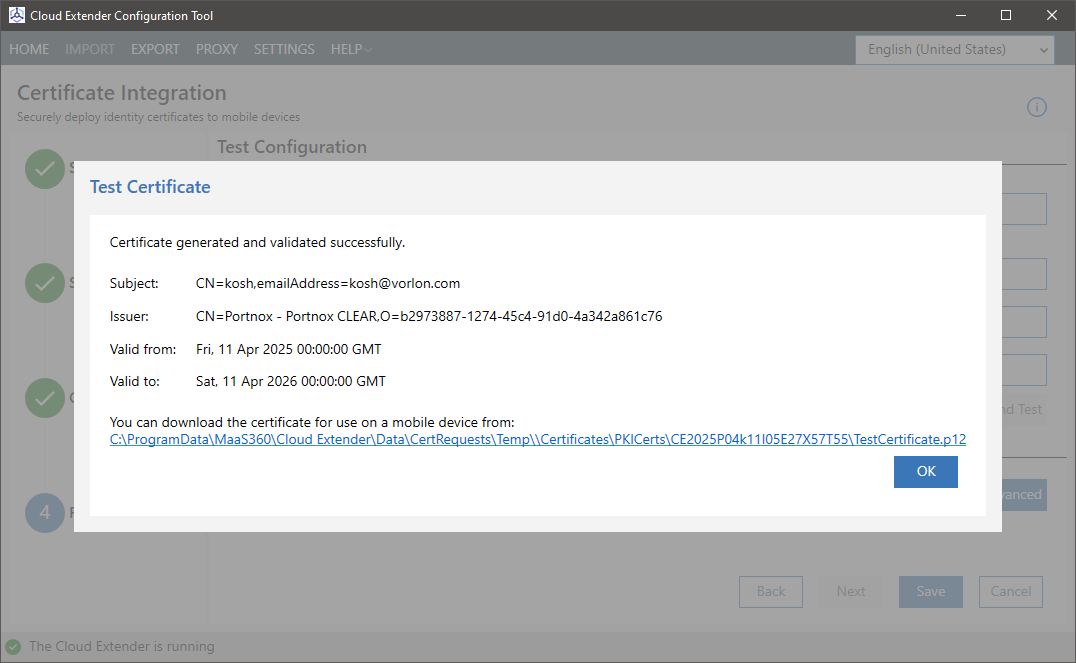
If the test was successful, click on the Save button to test your
configuration.
-
If the test was successful, click on the Save button to test your
configuration.
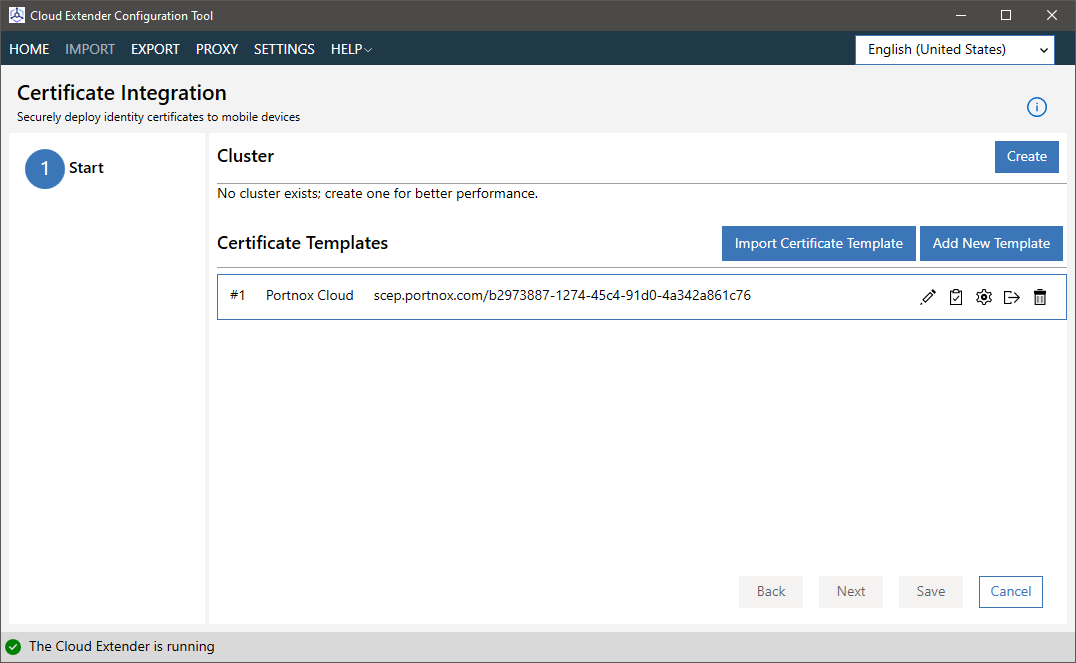
Result: You created a configuration for the Portnox Cloud SCEP CA.
Create an iOS profile in MaaS 360
In this section, you will create an iOS profile in the MaaS 360 tenant for obtaining the SCEP certificate.
-
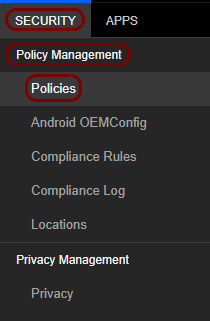
In your MaaS 360 tenant, in the top menu, select: .
-
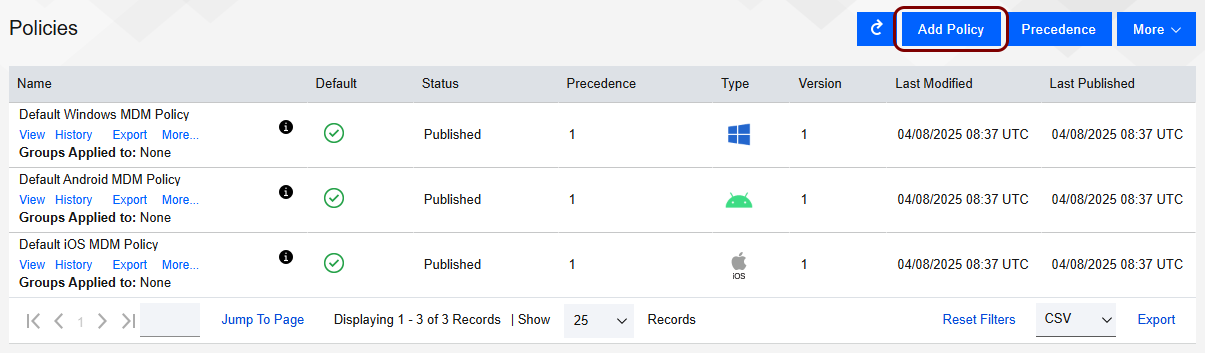
In the Policies pane, click on the Add Policy button.
-
In the Add Policy pane:
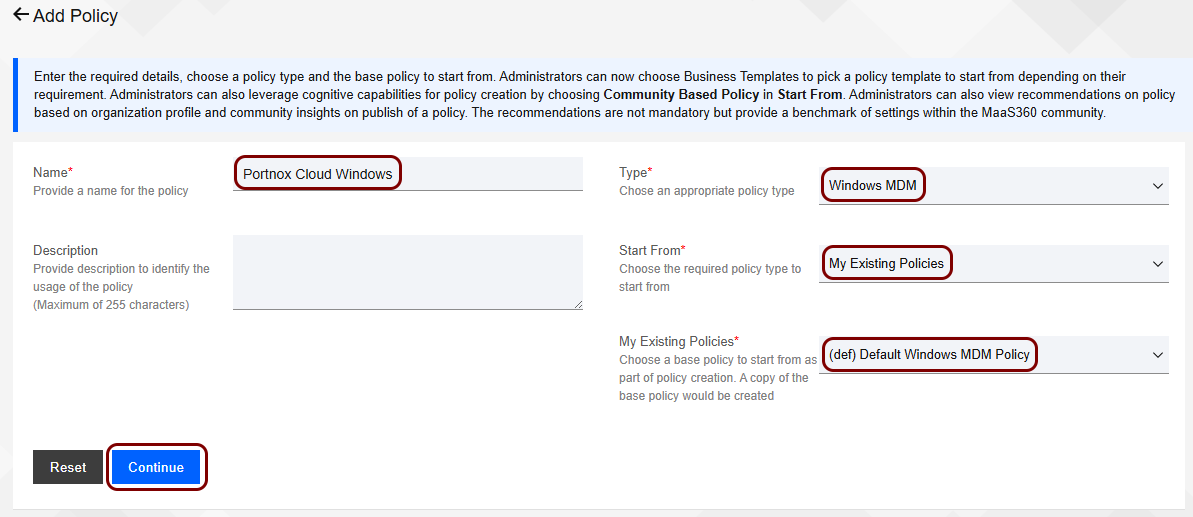 Note:You can also edit the Default iOS MDM Policy directly if you want all your iOS devices to use the same policy.
 -
In the new policy pane, in the left-hand side menu, select the option.
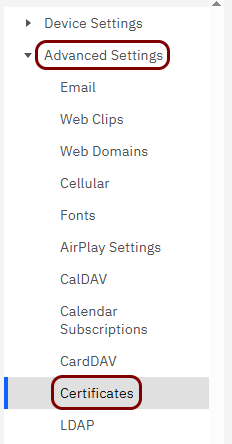
-
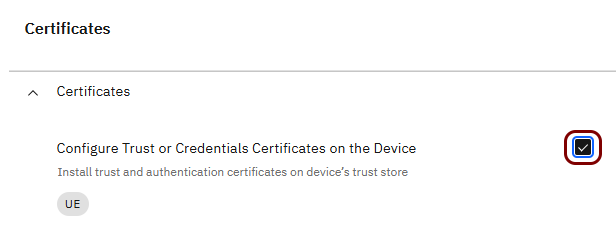
In the Certificates pane, activate the Configure Trust or Credentials
Certificates on the Device checkbox.
-
In the Trust or CA Certificates section, in the Certificate Name
field, enter a name for this certificate, and then in the Certificate section, click on the
+ icon.
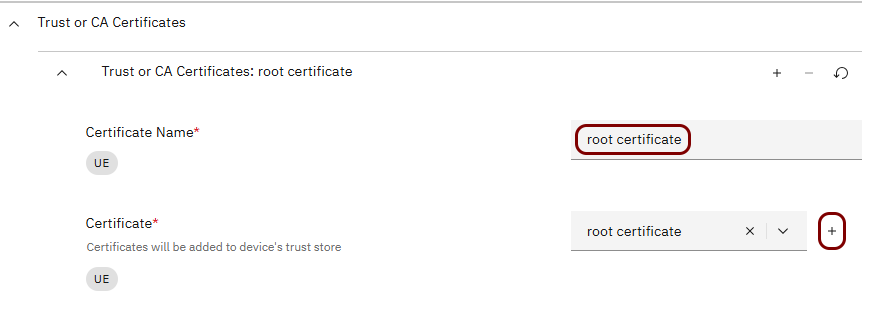
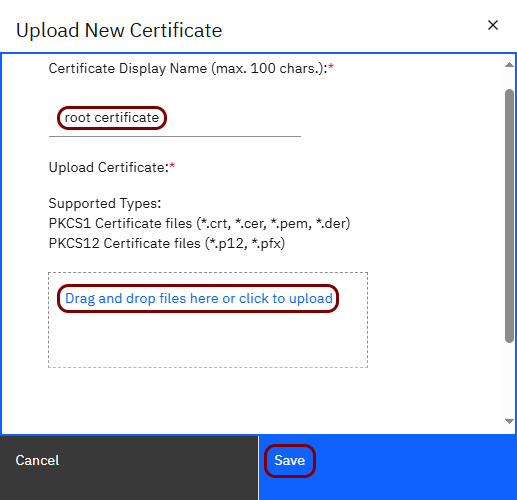
In this example, we used the name root certificate, but you can use any name you like.
-
In the Upload New Certificate window:
-
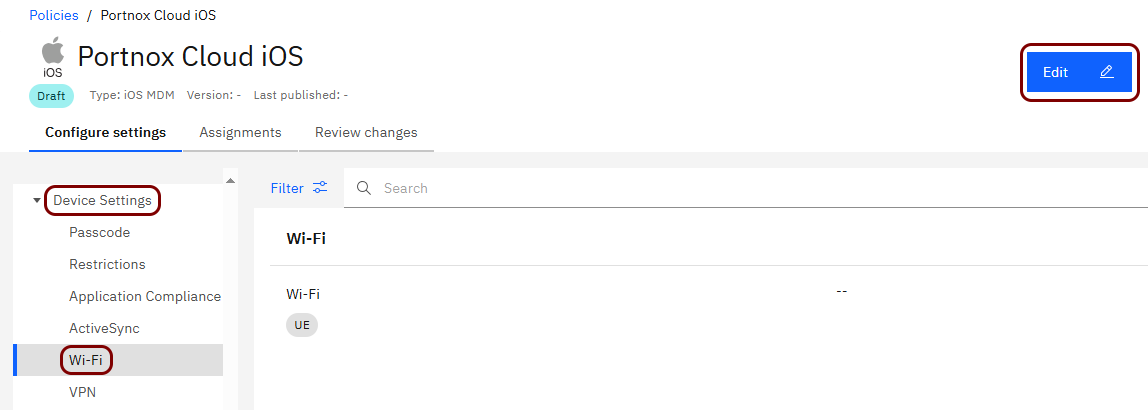
In the left-hand side menu, select the option. Then, click on the Edit button.
-
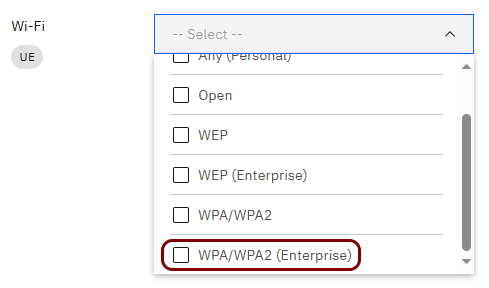
In the Wi-Fi field, select the WPA/WPA2 (Enterprise) option.
-
In the Service Set Identifier (SSID) field, type the SSID of your Wi-Fi network.

-
Activate the Auto Join checkbox.

-
Activate the Disable MAC Address Randomization checkbox.
 Important:If you do not turn off MAC address randomization, and the supplicant certificates are not issued by Portnox SCEP, and the certificate’s SAN field does not include a Jamf or Intune device ID, Portnox Cloud assigns a new license to the device each time it connects with a different MAC address. This can significantly increase your licensing costs. Even if you use Portnox SCEP and this issue does not apply, we still recommend turning MAC address randomization off for safety. For more information, see the following topic: MAC address randomization – why it causes problems and how to turn it off.
 -
In the Encryption Type field, select the WPA option.

-
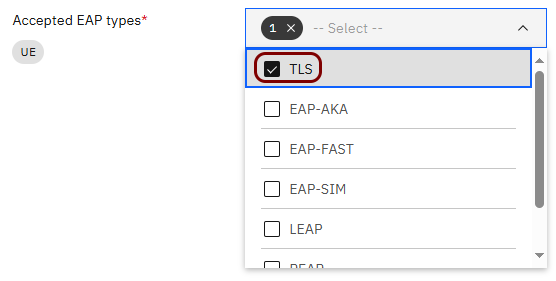
In the Accepted EAP types field, select only the TLS option.
-
In the Trusted Certificates field, select the root certificate from the list.
 Note:This is the same certificate that you added earlier in the Certificates pane.
 -
In the Trusted Certificate Name field, type:
clear-rad.portnox.com.

-
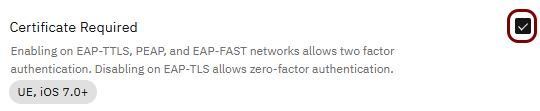
Activate the Certificate Required checkbox.
-
In the Identity Certificate field, select the SCEP CA configuration that you added earlier
in the Cloud Extender.

Result: You created a profile for Portnox Cloud and iOS devices. You can now assign this profile to devices by following MaaS 360 documentation.